Summary note
Summary notes condense an uploaded file or pasted text. Video and audio are transcribed first, which makes this the right tool for interview recordings and workshop footage.
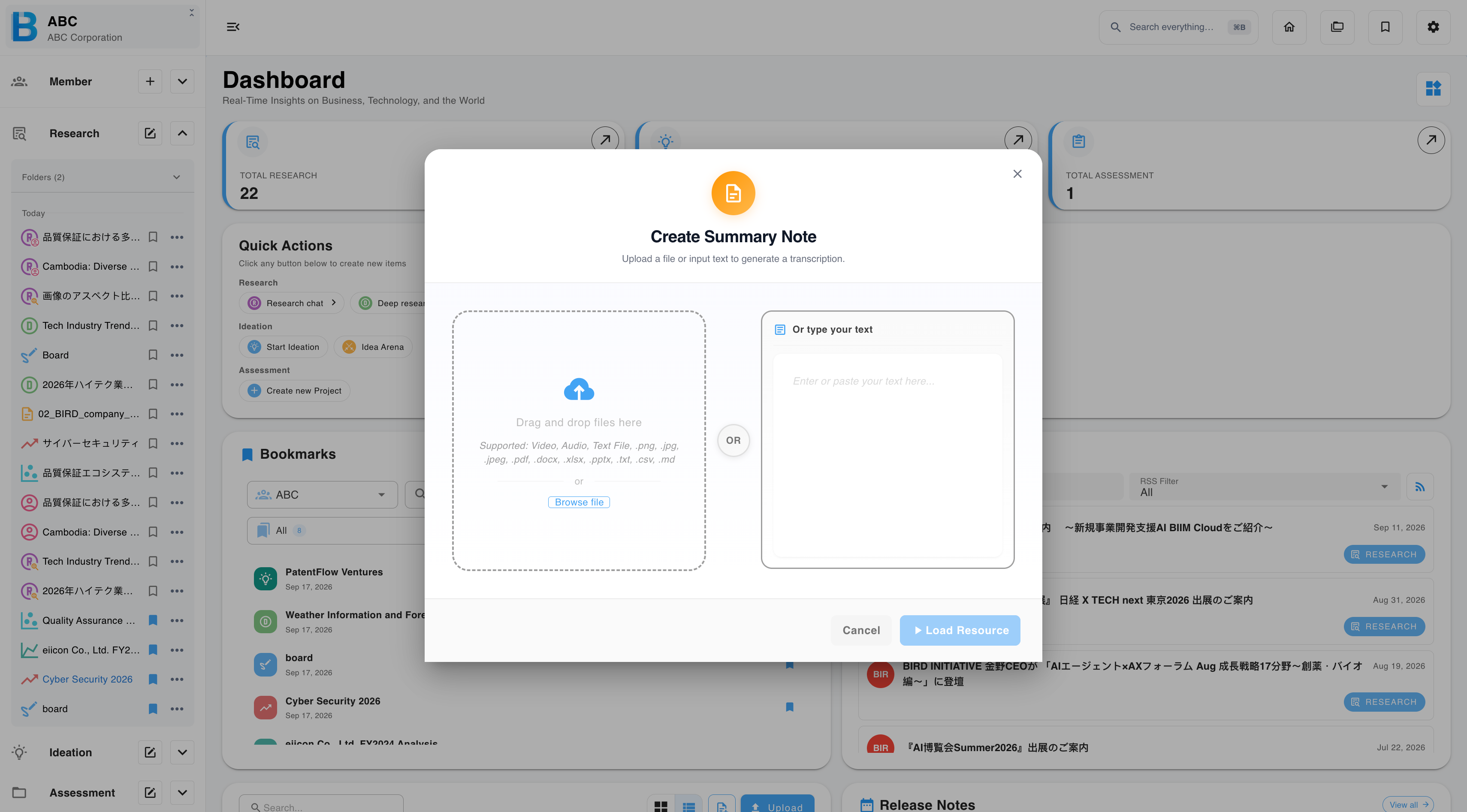
Step 1 — Load a source
Select Research → Summary note, then either upload a file or paste text into the input box.
| Source type | Accepted formats |
|---|---|
| Media | Video and audio |
| Images | .png .jpg .jpeg |
| Documents | .pdf .docx .xlsx .pptx .txt .csv .md .html |
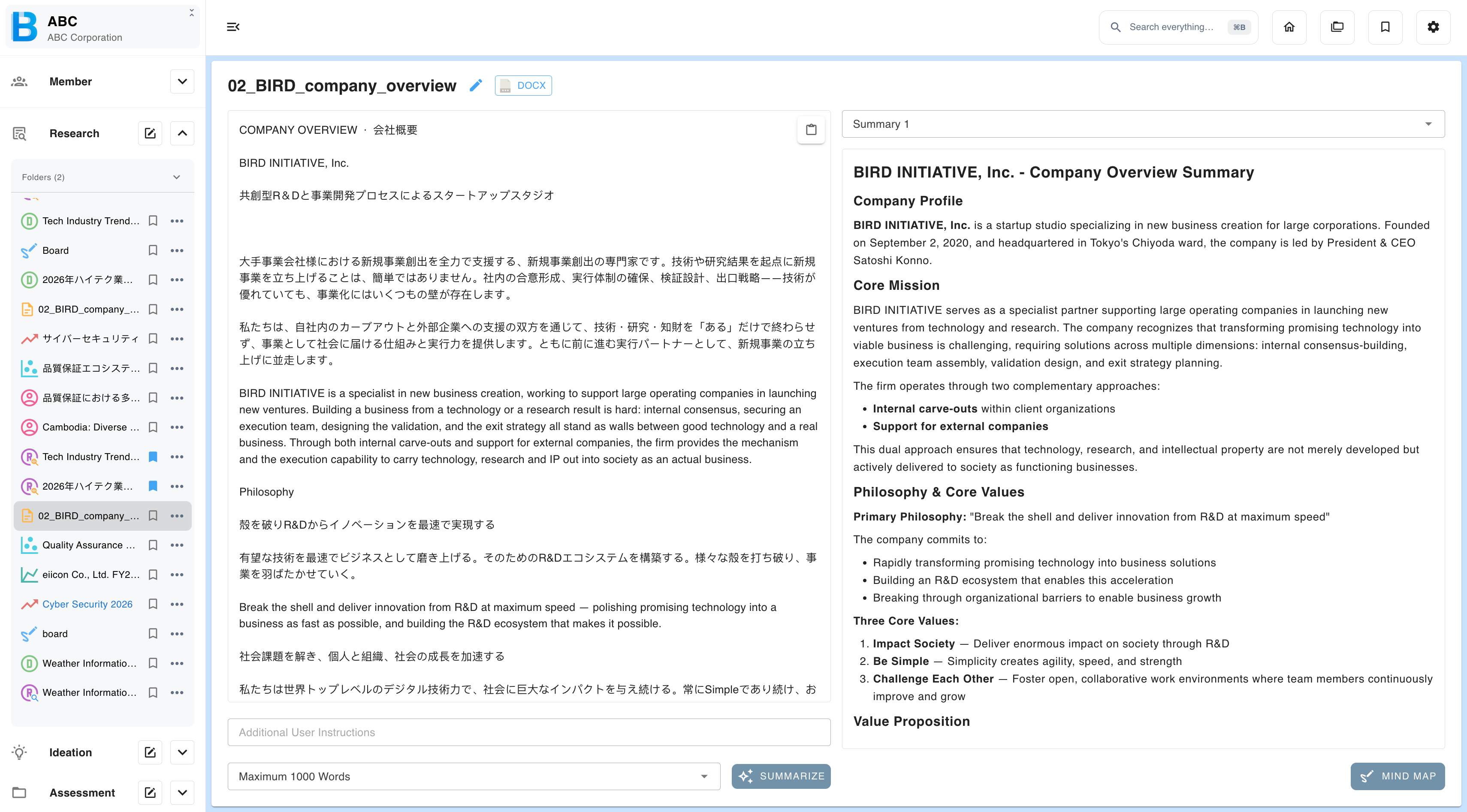
Step 2 — Check the extracted text
Transcription or extraction runs, and the source text appears for review. Both the name and the extracted text can be edited before you summarise.
Step 3 — Summarise
- Add a user instruction if you have one.
- Set the maximum word count.
- Select Summarise.
Useful instructions cover the purpose of the summary, the background — for example "these are customer interview results" — or a request to structure the output in a particular way.
The word limit is the main control over how useful the result is. A short limit forces prioritisation; a long one preserves nuance. For interview material, generous limits usually work better, because the specific phrasing a customer used is often the valuable part. Run it again with different settings and compare.
Turning a summary into a mind map
Select Mind map. The summary is rendered as a tree on a new idea board, where your team can rearrange and annotate it — see Idea Board.