Overview
The workspace interface: the sidebar, section buttons, what each menu creates, and the top-right icons.
The workspace is the interface you view your group's work through. Everything in this chapter works the same way whether you are in Research, Ideation or Assessment.
- Dashboard — home screen, counters, quick actions and widgets
- Global Search — finding items, and creating and navigating from the same panel
- Bookmarks — saving items and individual chat messages
- RSS — news feeds, and turning an article into research
- Public Sharing — sharing outputs with people outside the group
- Group Administration — profile, members, activity and the sharing audit
- Files and AI Context — uploads, memos, and the five-file AI context
- Folders — organising items inside a section
- Move Items Between Groups — sending an item to another group
- Settings — language, invitations, account and sign out
The workspace is the interface; the group is what your work belongs to. Everything you see in the workspace belongs to the one group you are currently viewing — see Switch Groups.
The sidebar
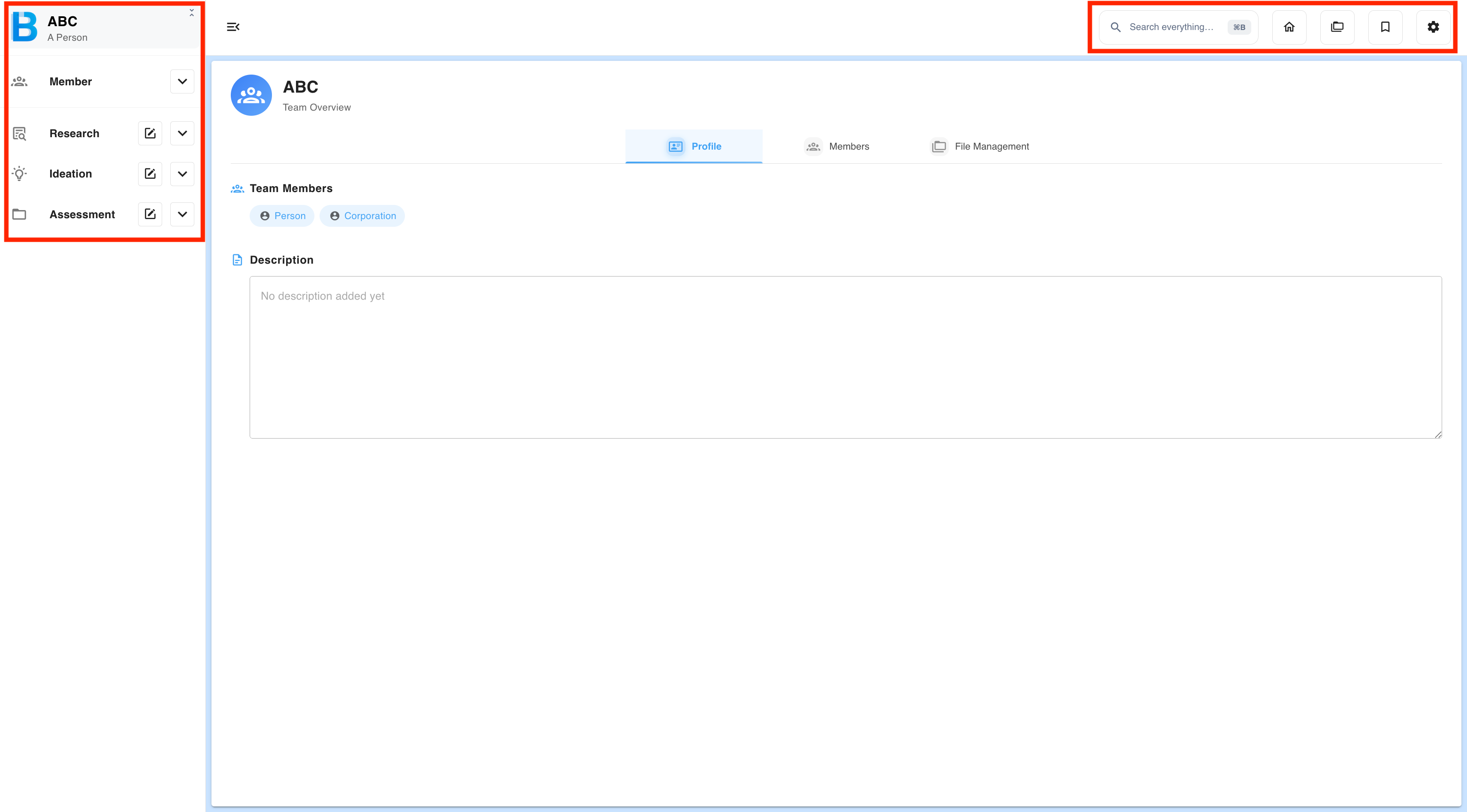
| Element | What it does |
|---|---|
| Group name (top) | The group you are in. Select it to switch groups — see Switch Groups. |
| Members | The people in this group. Invite, view profiles and change roles — see Invite Members. |
| Research | Opens the Research section and its list of items. |
| Ideation | Opens the Ideation section and its list of items. |
| Assessment | Opens the Assessment section and its list of items. |
| Collapse (arrow at the top) | Hides the sidebar to widen the main window. Select it again to bring the sidebar back. |
Section buttons
Research, Ideation and Assessment each have two buttons beside the section name.
| Button | What it does |
|---|---|
| Compose (pencil) | Open a menu of the things you can create in that section. |
| Expand / collapse (chevron) | Shows or hides the list of existing items. |
Selecting the section name instead opens its full list in the main window, with search, filters, bookmarks, and pagination that loads more items as you scroll.
Items in the sidebar are grouped by date, with the most recent at the top. Opening an item from your bookmarks also makes it active in the sidebar, so you keep your place.
What each menu creates
| Section | Menu items |
|---|---|
| Members | Invite member, view profile, edit profile, change role, remove member, leave group |
| Research | Research chat, Deep research, Idea board, Summary note, Trend research, Chaos map, Issue persona, New folder |
| Ideation | Start ideation, Idea Arena, New folder |
| Assessment | Start a new project, New folder |
Top-right icons
| Icon | What it opens |
|---|---|
| Search | Global search |
| Home | The dashboard — see Dashboard. |
| Folder | File management and group administration — see Group Administration and Files and AI Context. |
| Bookmark | Your bookmarks — see Bookmarks. |
| Gear | Settings — see Settings. |