Managing assessments
Rename, file, export, bookmark and delete assessments, and use the assessment list.
Select ··· next to an assessment.
| Action | Notes |
|---|---|
| Rename | Up to 70 characters. |
| Move to folder | An item already in a folder is removed from that one — see Folders. |
| Download PowerPoint | Exports the assessment project as a .pptx file. |
| Bookmark | See Bookmarks. |
| Delete | Permanent. |
Assessments cannot be shared publicly. If someone outside the group needs the result, download it as PDF, Word or PowerPoint and send that instead — see Public Sharing for what can be shared.
Folders
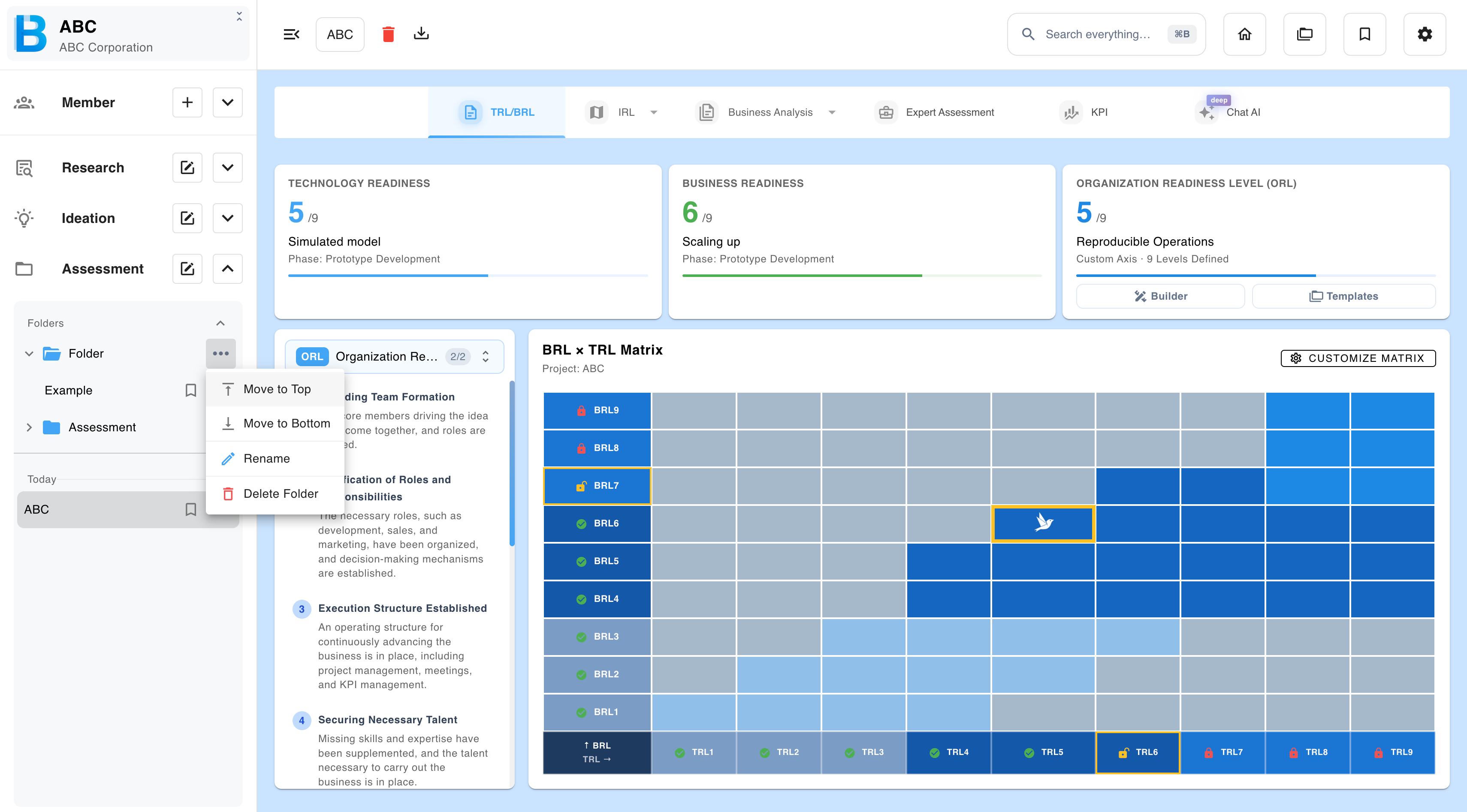
Create folders from the section menu. Folders can be renamed, deleted, and moved to the top or the bottom of the list — see Folders.
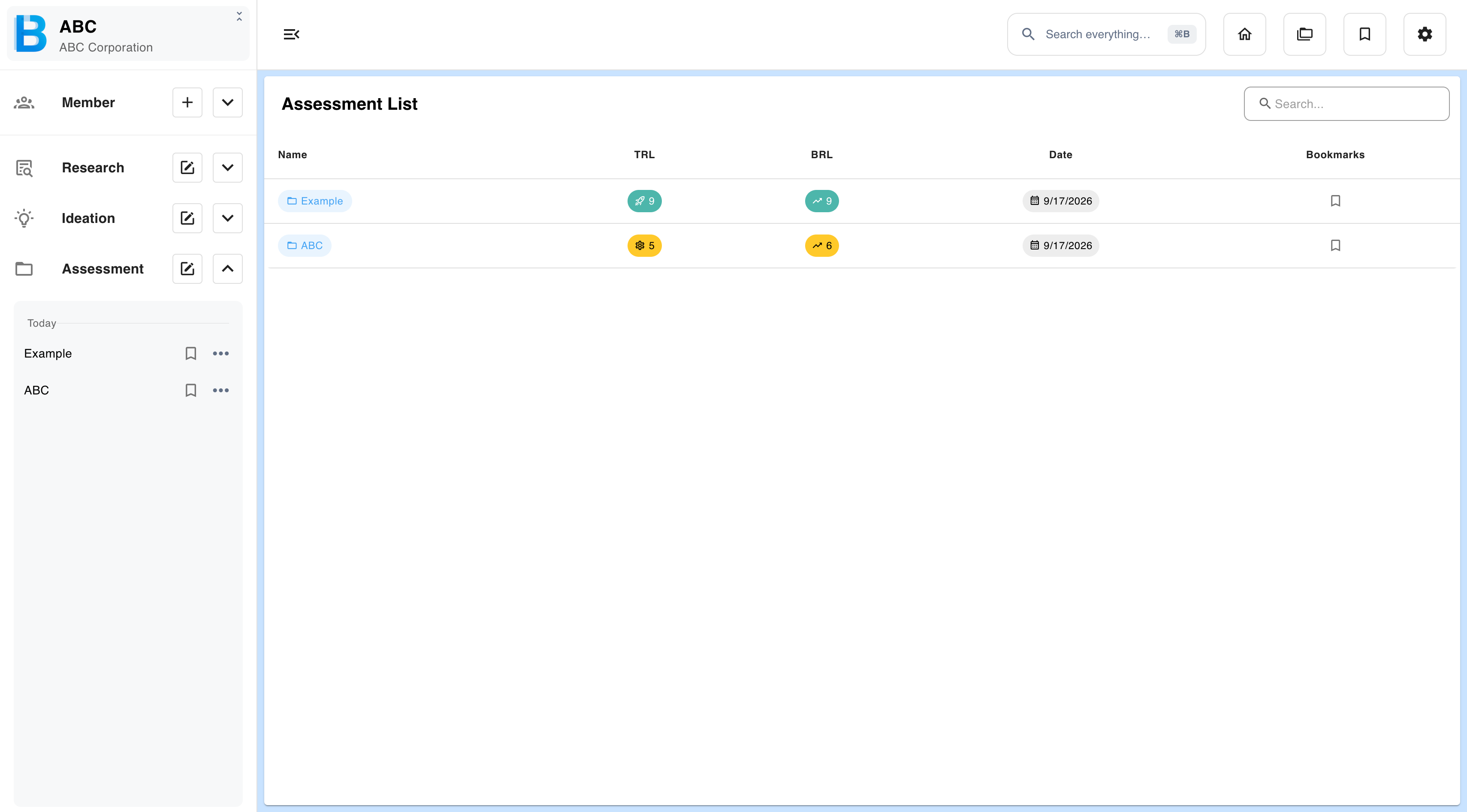
The assessment list
Selecting Assessment in the sidebar — the name rather than the buttons beside it — opens the full list, with search and bookmarks.
Deleting
Deleting an assessment permanently deletes every file uploaded to it, including the evidence documents attached to level submissions. Keep the originals somewhere else.
For problems, see Troubleshooting. Unfamiliar terms are defined in the Glossary.