Research chat
Research chat answers questions one at a time, searching the web as it works. Answers come back as visual output — tables, diagrams and charts alongside the text — and any answer can be turned into a presentation, a spreadsheet or a document.
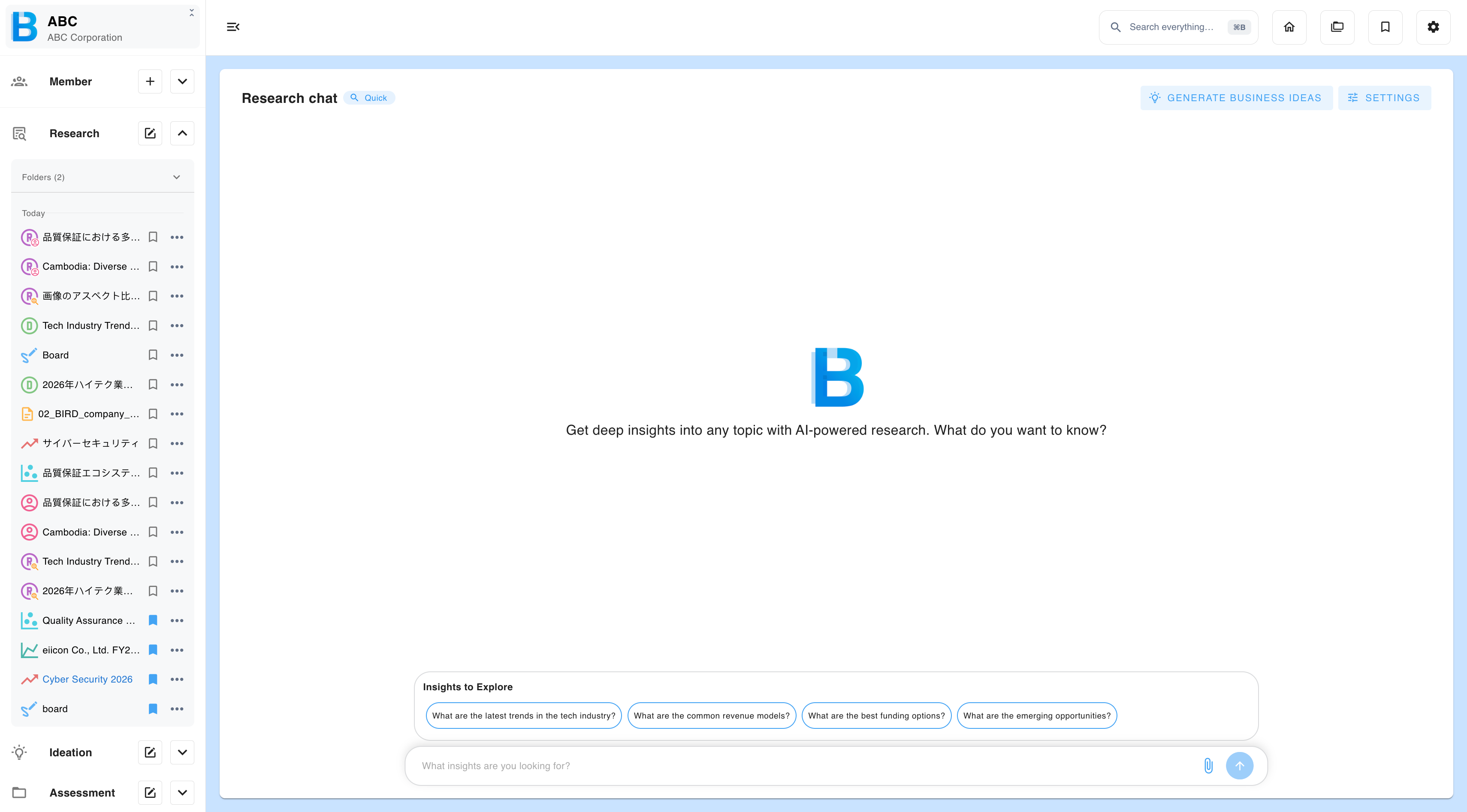
Choosing a level
Depth and speed trade off against each other. There are five levels.
| Level | Behaviour |
|---|---|
| Instant | Fastest. Essentially no searching. |
| Quick | Fast, with light searching. |
| Balanced | The default trade-off. |
| In-depth | Slower, with substantial searching and cross-checking. |
| Comprehensive | Slowest and most thorough. Exhaustive search and verification. |
Choose a level when you create the chat, or change it per question from the settings control.
Higher levels take longer but produce better-supported answers. The difference shows most on questions with a factual answer that needs sourcing, and least on questions that ask for structure or rewriting — there is little point running Comprehensive on "turn this into a bulleted list".
Attaching files
Select the attachment button beside the message box.
- Files already in group storage are listed — tick the ones you want.
- AI context files are always included, whether or not you select them.
- Select Upload to add a file from your computer.
| Limit | Value |
|---|---|
| Maximum per file | 50 MB |
| Images | .jpg .png |
| Documents | .doc .docx .pdf .ppt .pptx .xls .xlsx .txt .csv .md .html |
PDFs are read including their images, not only their text. A slide deck exported to PDF, or a scanned diagram, is understood rather than skipped.
The AI can tell which of several attached files you are referring to, so you can attach a set and then ask about them one at a time.
Writing your question
- Shift + Enter starts a new line without sending.
- Your own messages can be copied back out with the copy control.
Cancelling a response
Select Cancel while an answer is being generated to stop it. Worth doing the moment you realise the question was wrong, rather than waiting for an answer you will not use.
What you can do with an answer
Every message has its own set of actions.
| Action | Options |
|---|---|
| Generate a web presentation | An HTML presentation, or an interactive simulator |
| Generate PowerPoint | Concise / Normal / High |
| Generate Excel | Concise / Normal |
| Copy with formatting | Pastes into a document with its structure intact |
| Download | Standard or high quality |
| Download as Word | The message as a .docx |
| Escalate | Sends the message to deep research |
Choosing a density
Concise, Normal and High control how much of the answer reaches the slide or the sheet. Concise gives you an executive summary you could present in five minutes. High keeps the supporting detail, for a document people will read rather than sit through.
Web presentations and simulators
Generating a web presentation produces a self-contained HTML file. A simulator is the same mechanism applied to something interactive — an adjustable model rather than a sequence of slides.
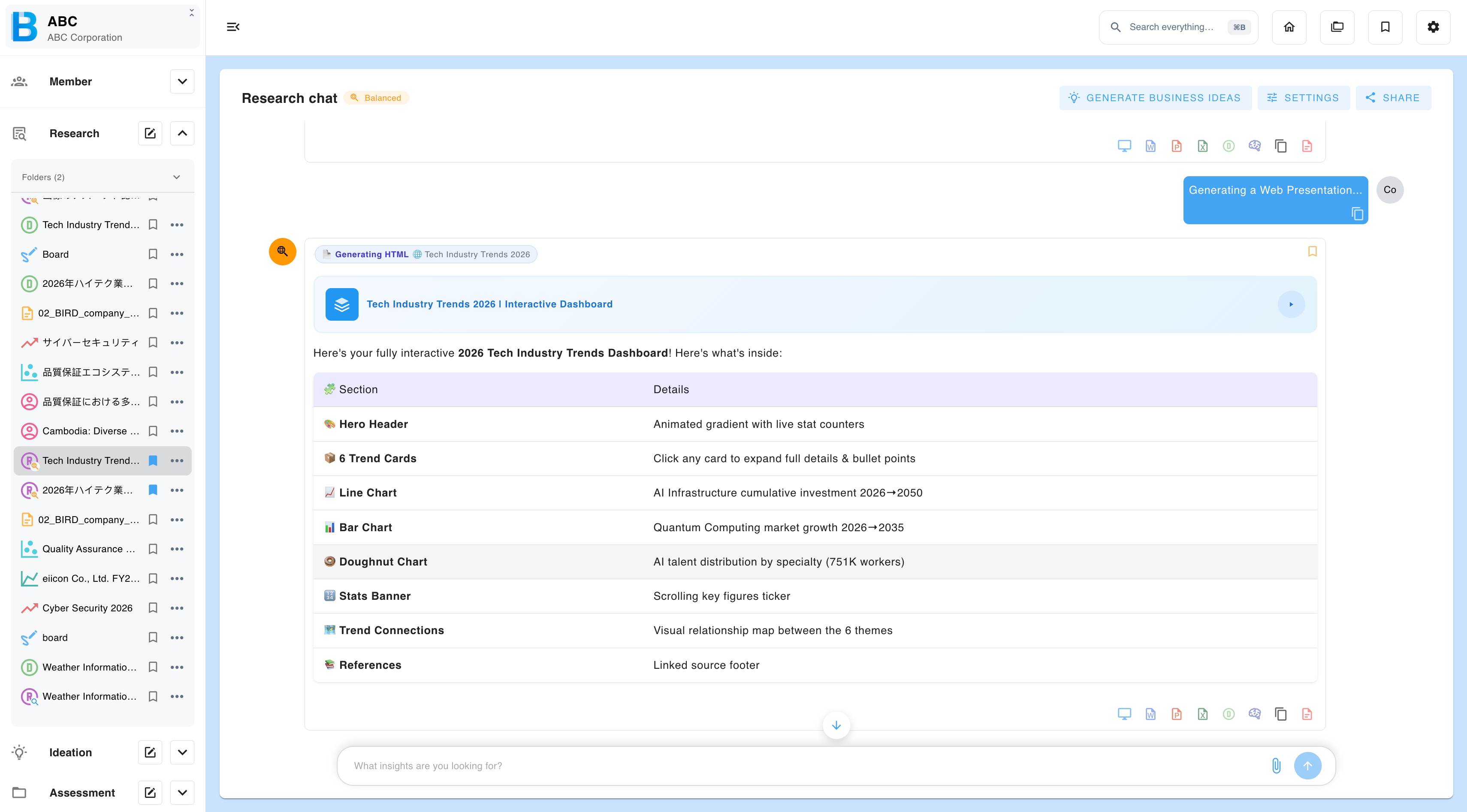
| Control | What it does |
|---|---|
| Preview | Rendered view inside BIIM. |
| Show code | The HTML source. |
| Copy | Copies the source. |
| Download HTML | Save the file. |
| Download as PDF | Exports the rendered result. |
| Open in a new page | Full-screen view. |
This is what to reach for when you need something in front of a customer without involving a developer.
PowerPoint
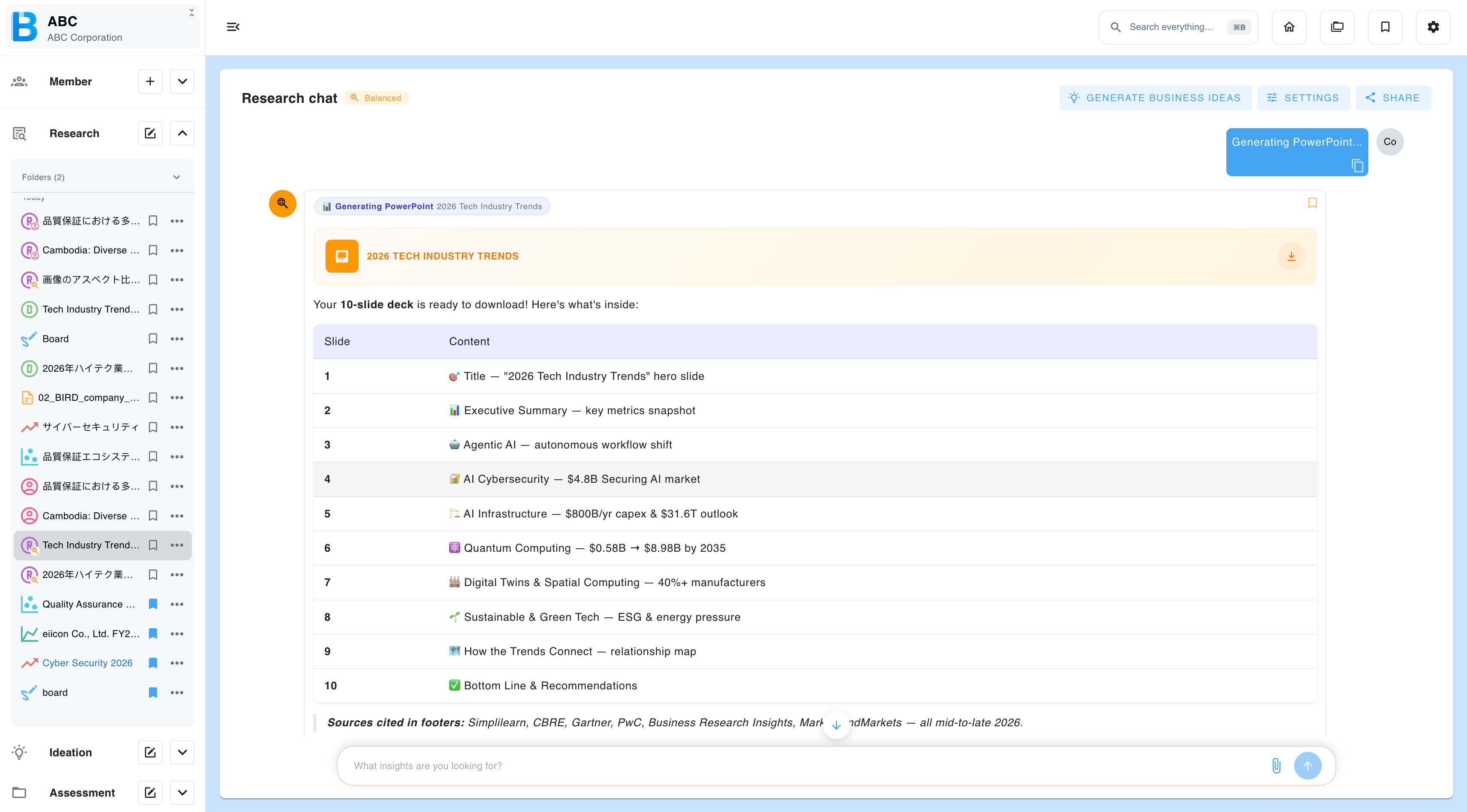
Generating a PowerPoint downloads a .pptx file. A progress dialog appears while it works, which can take a moment for a High-density deck.
Excel
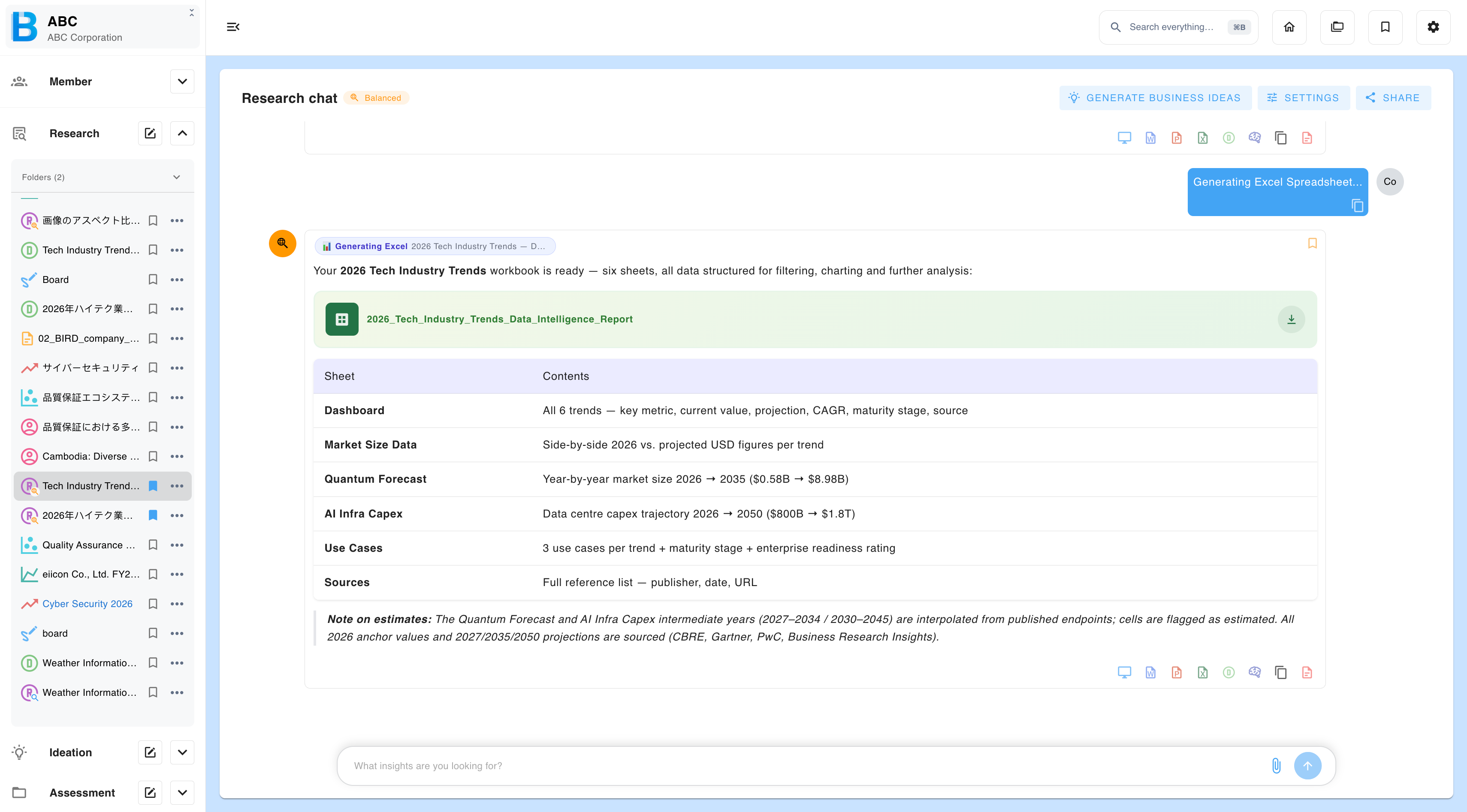
Excel can be generated with or without the underlying data. Without data you get the structure alone — a WBS, a comparison framework, a model skeleton — to populate yourself.
Charts
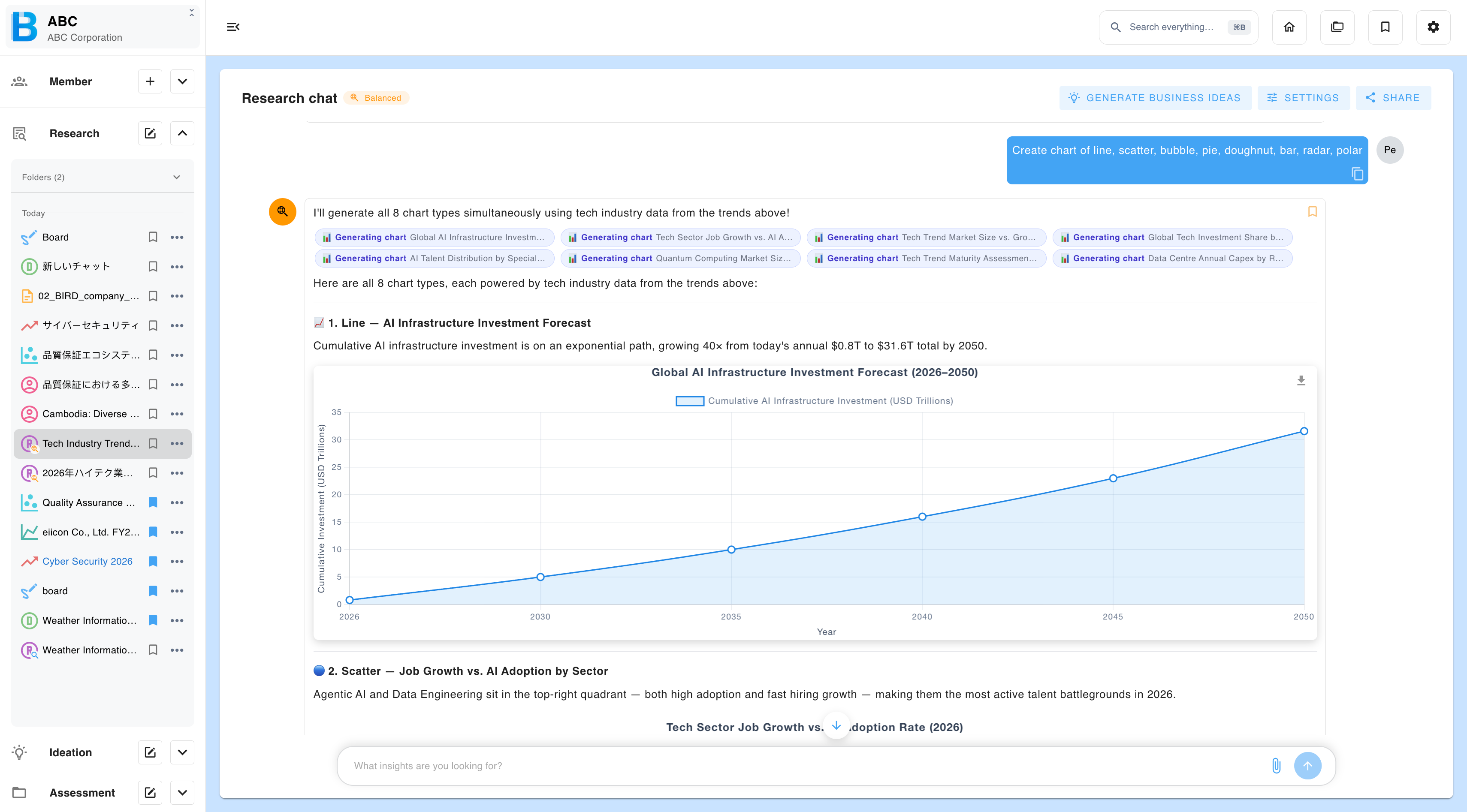
Charts appear inline. Select any chart to view it larger and download it. Supported types: line, scatter, bubble, pie, doughnut, bar, radar and polar.
If the default choice does not suit the data, just ask for a different one — for example, "show this as a radar chart instead".
Images
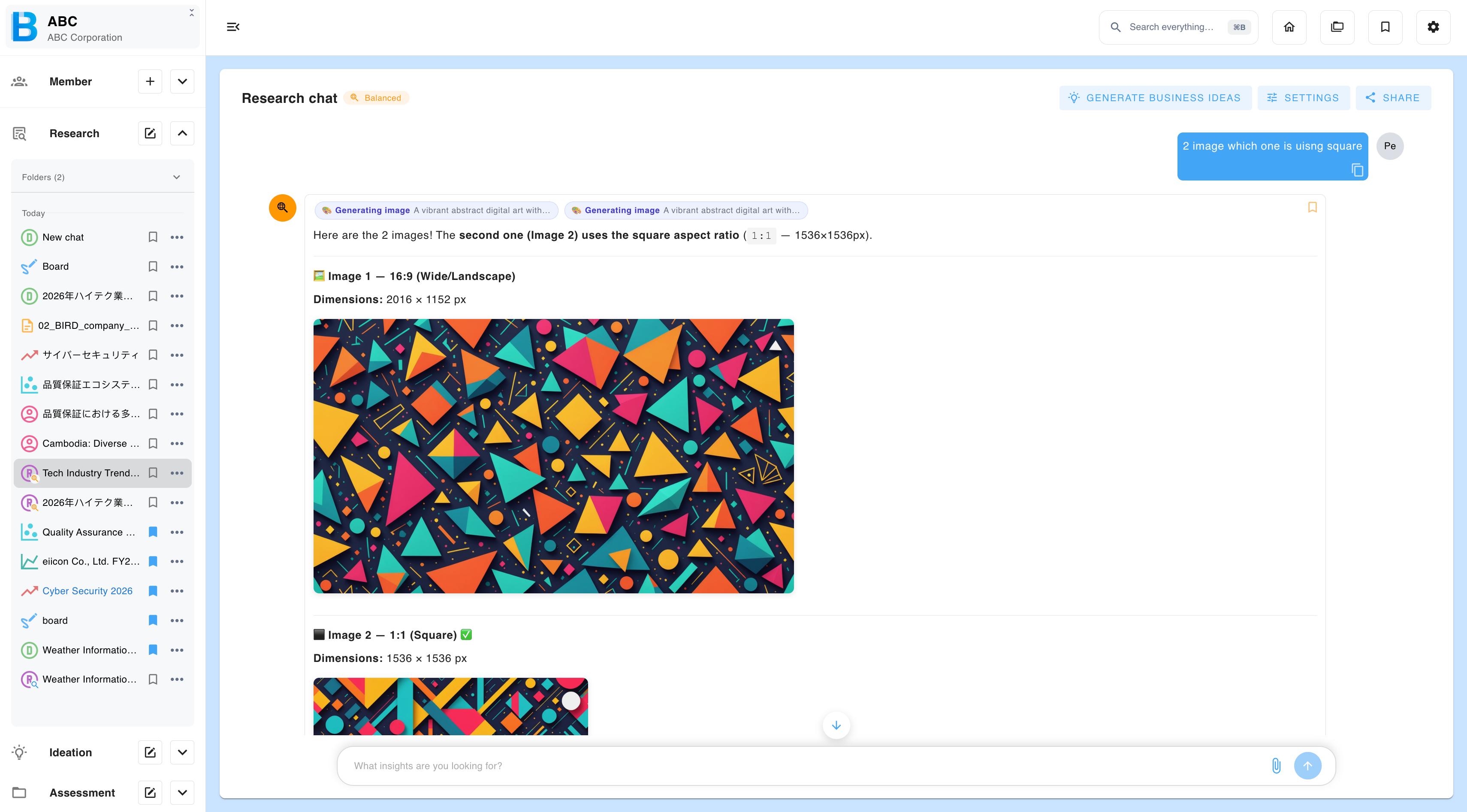
Two formats are available: standard and square. Square suits social posts and thumbnails; standard suits documents and slides.
Code
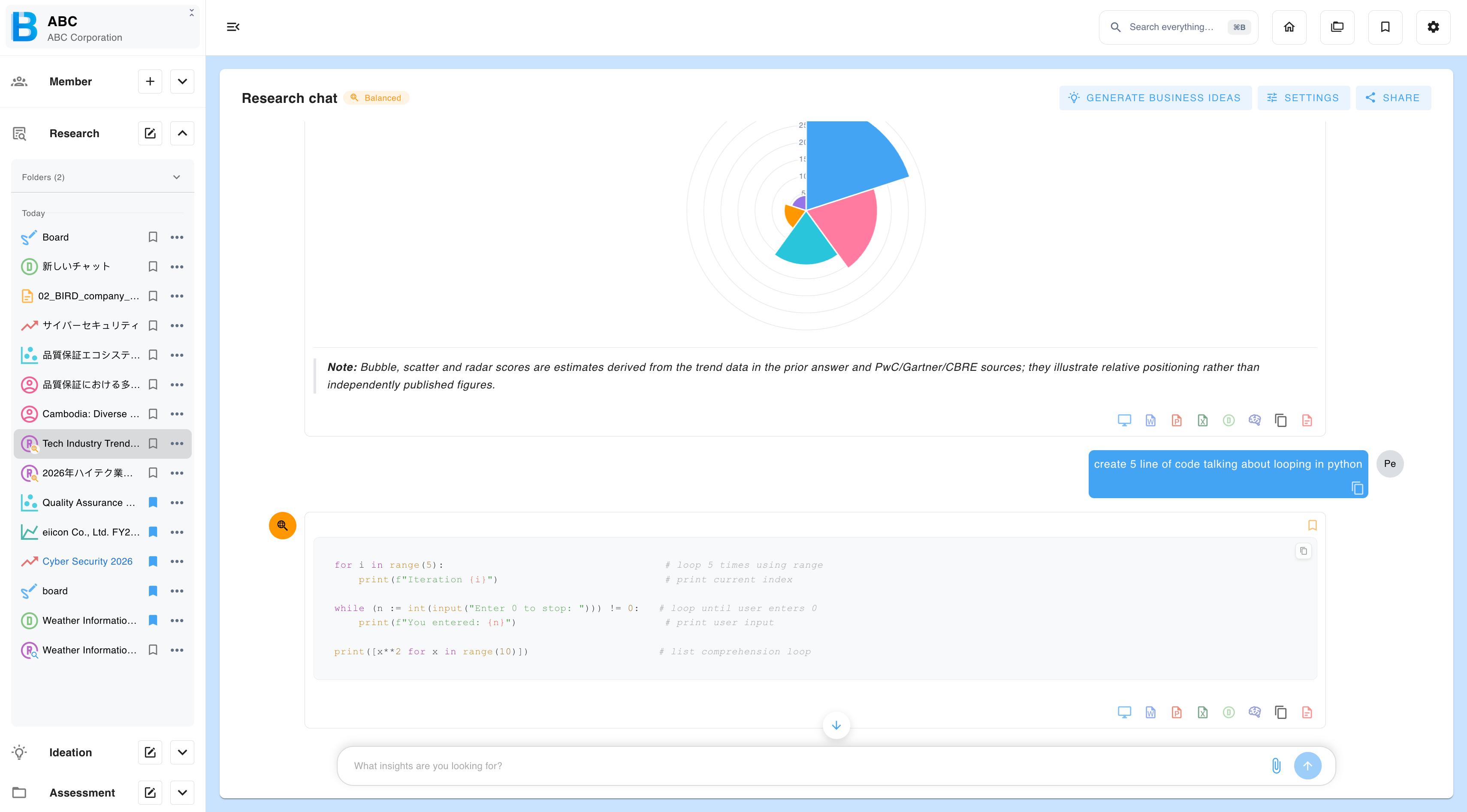
Generated code is displayed with syntax highlighting, so it stays readable when you copy it out.
Saving an answer as AI context
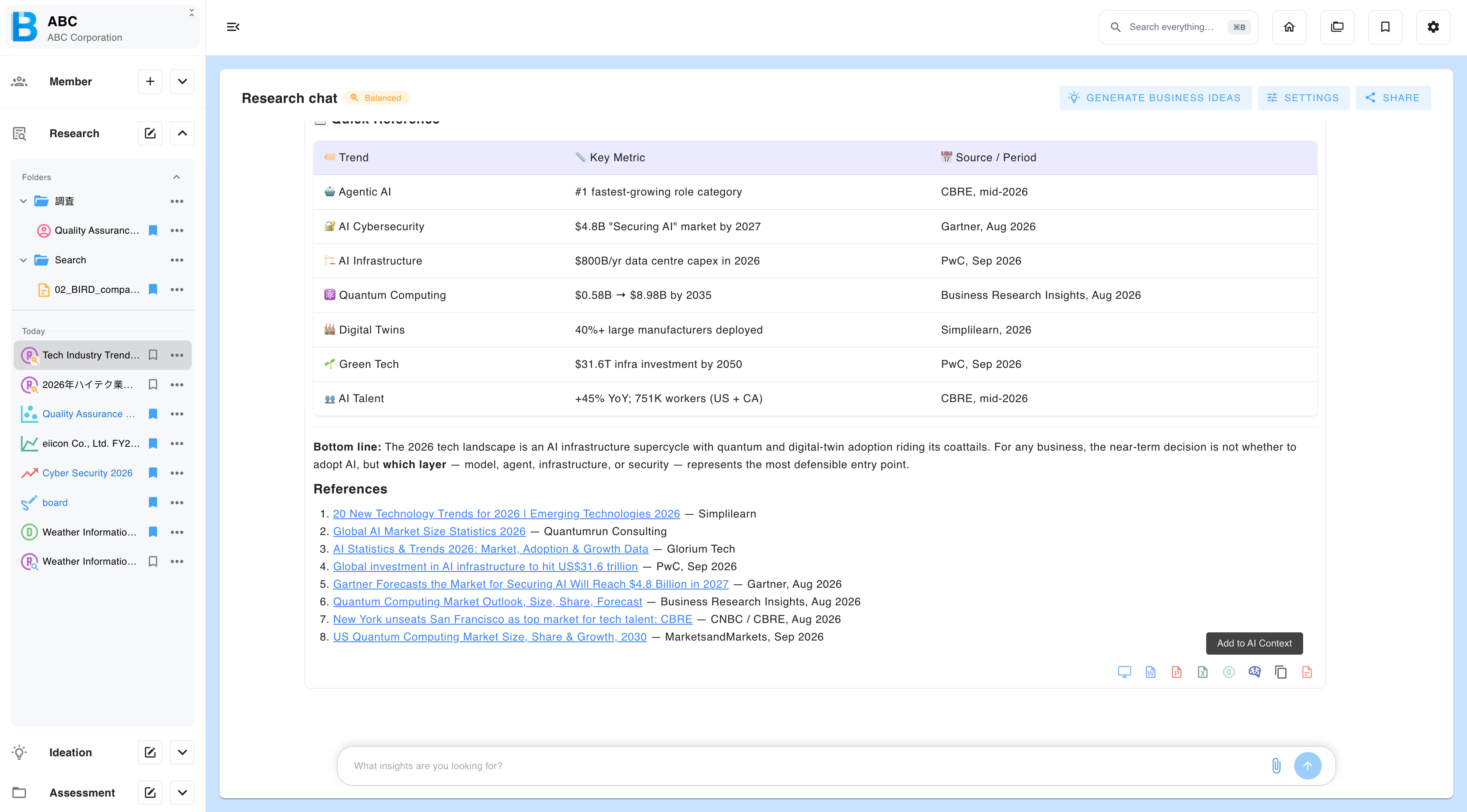
An answer can be written to storage as a Markdown file and set as AI context in a single action. Everything generated afterwards in that group then treats the answer as an established premise.
Escalating to deep research
Escalate sends a message to deep research, carrying its context across. Use it when a quick answer turns out to deserve a full investigation — see Deep Research.
Taking a chat into ideation
A research chat can be promoted to ideation, carrying the conversation's context with it. See Promote Research to Ideation in the Ideation chapter.