Roles and permissions
There are three roles: owner, member and guest. Only the group owner can assign or change them.
| Role | What it means |
|---|---|
| Owner | Assigned automatically to whoever creates the group. Can do everything, including changing the group itself and its membership. |
| Member | Can do all the creative work — AI generation, creating and editing items, and file management. Cannot change the group or its membership. |
| Guest | View-only. A guest can read what is in the group and download its files, but cannot run any AI generation or change anything. |
What each role can do
| Action | Owner | Member | Guest |
|---|---|---|---|
| View research, ideations and assessments | Yes | Yes | Yes |
| Download files | Yes | Yes | Yes |
| AI generation of any kind | Yes | Yes | — |
| Create, edit or delete items | Yes | Yes | — |
| Upload and manage files | Yes | Yes | — |
| Create public share links | Yes | If enabled by owner | — |
| Edit the company or team profile | Yes | — | — |
| Invite or remove members | Yes | — | — |
| Change roles | Yes | — | — |
| Delete the group | Yes | — | — |
| Activity analytics | Yes | — | — |
| Public sharing audit | Yes | — | — |
Public sharing is granted to individual members, not to everyone in the group at once. See Invite Members.
When to use a guest
Guests are people inside your organisation whose privileges you have deliberately limited — someone who needs to read the group's work without contributing to it. The guest role is not a way to bring in people from outside: every invited address must be on an approved domain, whichever role you choose.
Guests count as members of the group. Since there is no limit on how many people a group can hold, adding guests costs you nothing.
Changing a role
Only the owner can change roles.
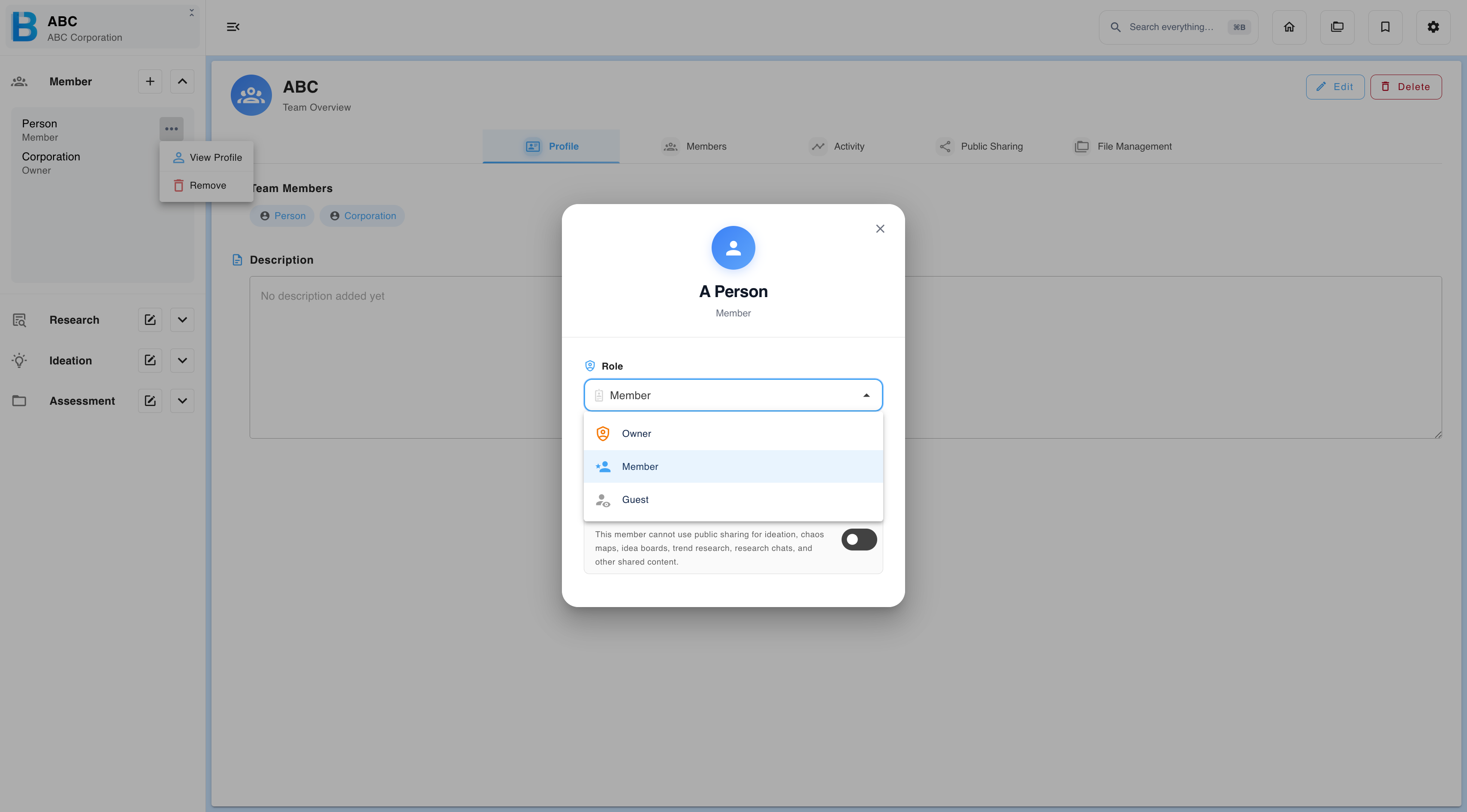
- Expand the Members list.
- Select the ··· menu next to the person's name, then View profile.
- Select a new role.
Changes take effect immediately. The affected person's permissions change during their current session, without signing out.
Transferring ownership
To hand the group to someone else, set their role to Owner from the same screen.
Because you cannot take ownership back yourself, only the new owner can return it to you. Agree the handover with them before you do it.
If you are the owner and want to leave
An owner cannot leave their own group. There are two ways out, and they have very different results.
| What you want | What to do | Result |
|---|---|---|
| The group carries on without you | Transfer ownership to a member, then leave the group as a member. | The group and all its data stay intact. Only you leave. |
| The group should no longer exist | Delete the group. | Every member loses the group, and all of its data is erased from storage permanently. |