Signing in
Sign in with your registered email address and password at https://biz.biim.cloud.
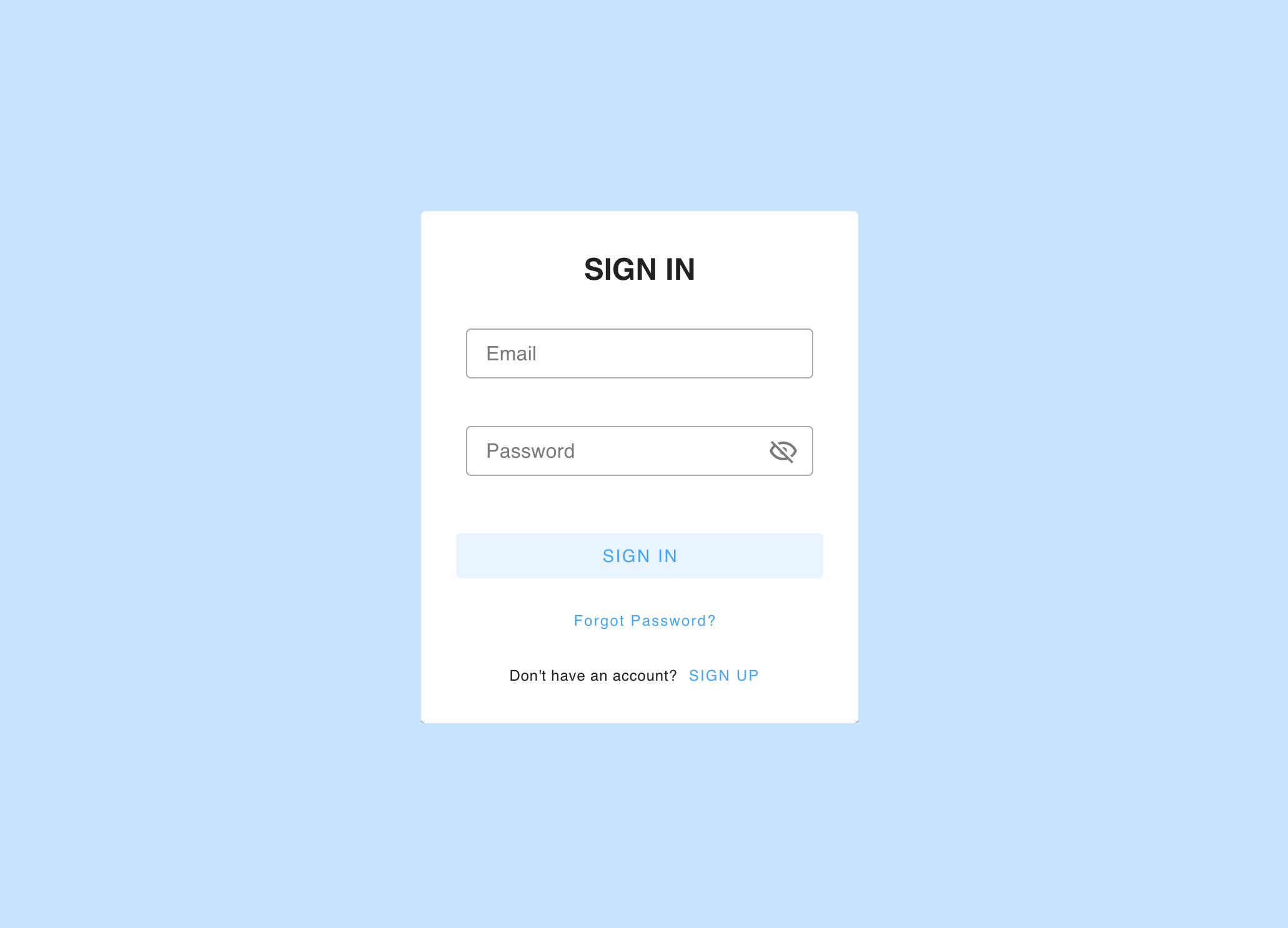
The two access checks from registration apply every time you sign in, not just the first time:
- Your email domain must be approved.
- If your organisation has IP restriction enabled, you must be connecting from a permitted IP address or range.
One-time password at sign-in
Depending on how your organisation is configured, a 6-digit code is emailed to you at every sign-in. When this is enabled, enter the code after your password to complete sign-in. The code is valid for 5 minutes and can be resent once.
If your organisation does not use a one-time password at sign-in, you go straight to your workspace after entering your password.
Signing out
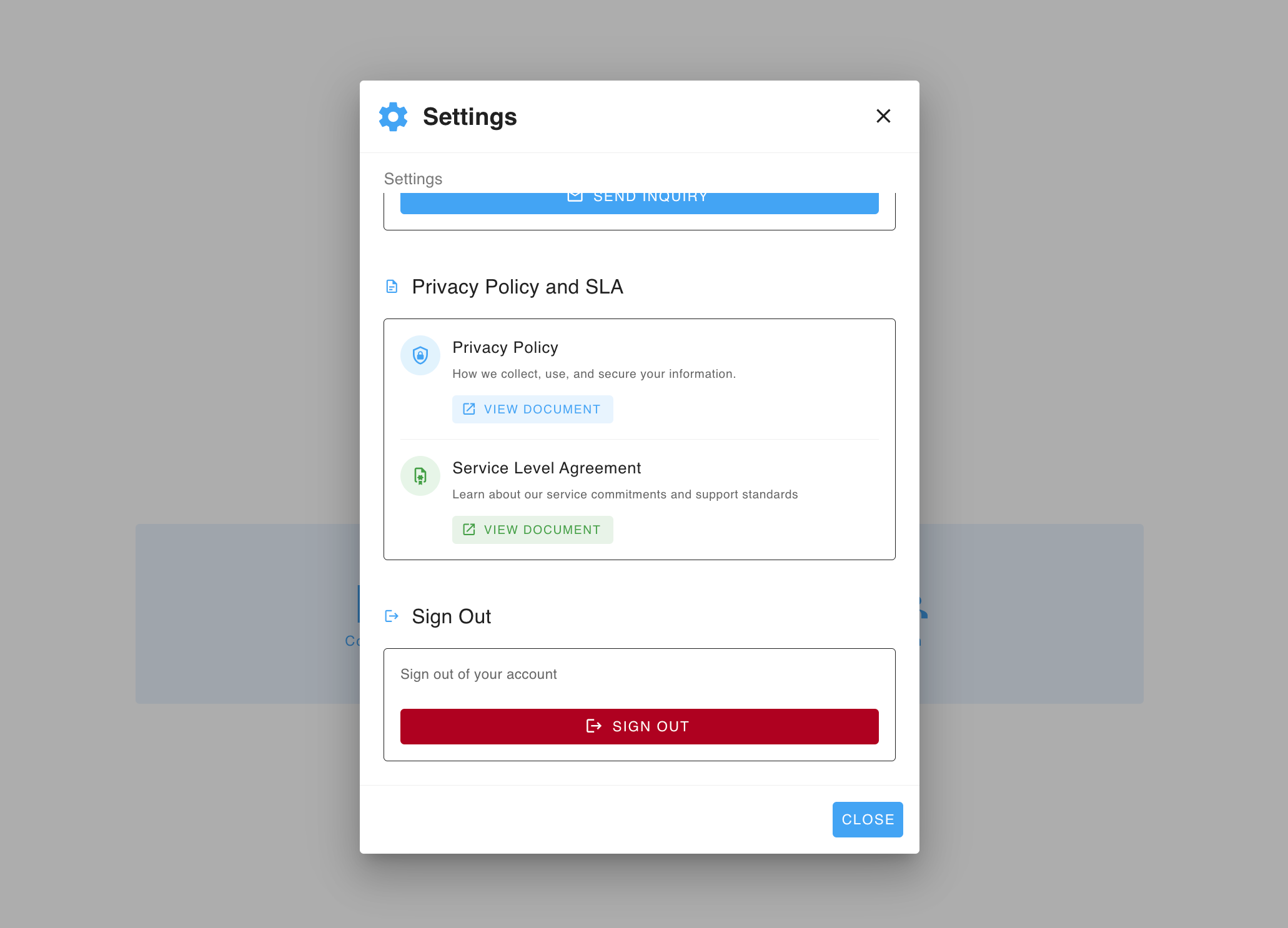
Select the Settings icon in the top right, then select Sign out.
Signing out ends your session on that device. Your work is saved as you go, so nothing is lost.
If you have forgotten your password
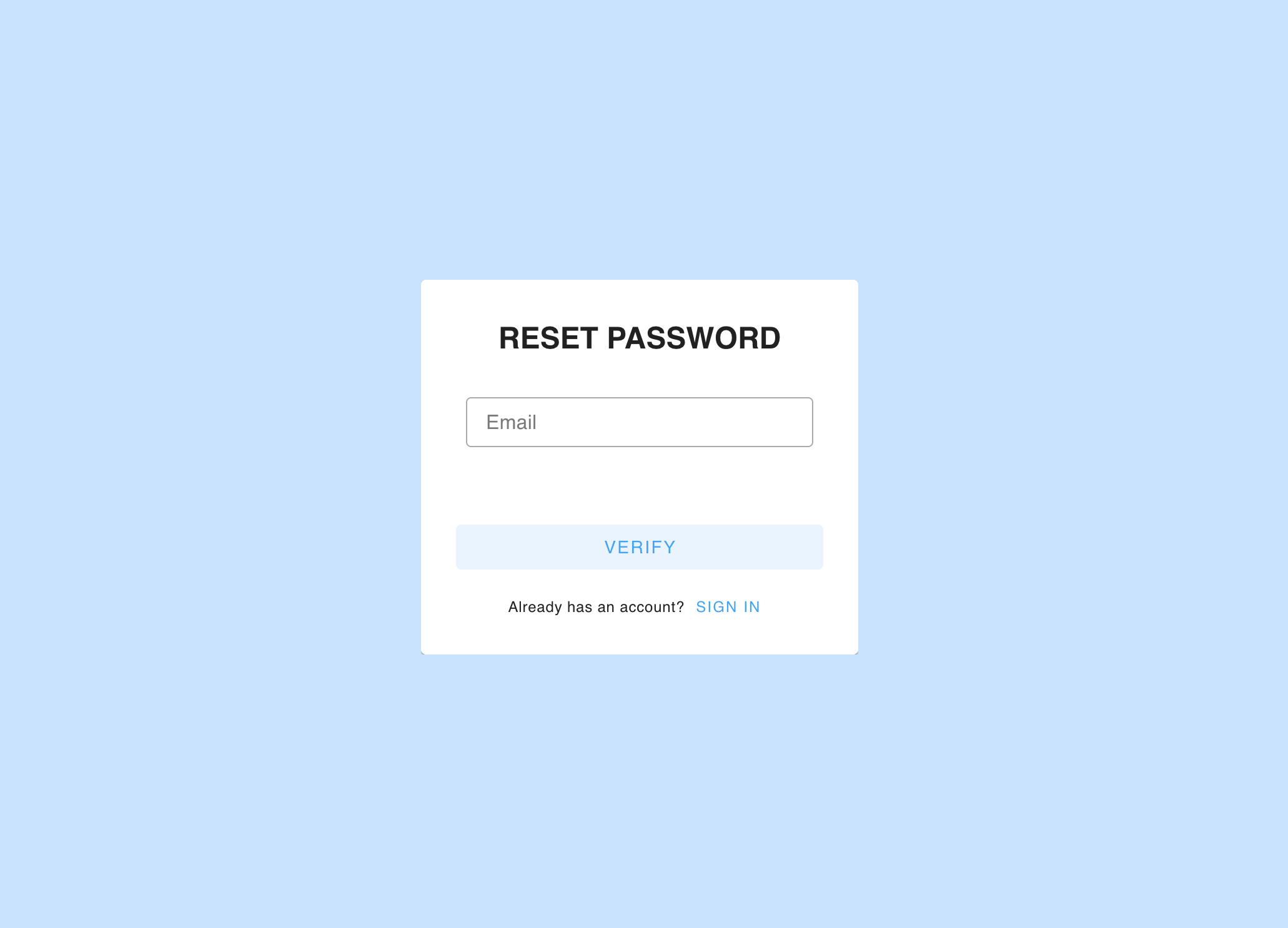
Step 1 — Request a code
- On the sign-in screen, select Forgot password.
- Enter your email address and submit.
- If the address is permitted, a 6-digit code is emailed to you.
Step 2 — Set a new password
Enter the code, then choose your new password. It must meet the password requirements in Create an Account. Once saved, sign in with your new password as normal.
Changing your password while signed in
If you know your current password and simply want to change it, you do not need the reset flow.
Step 1 — Open the password screen
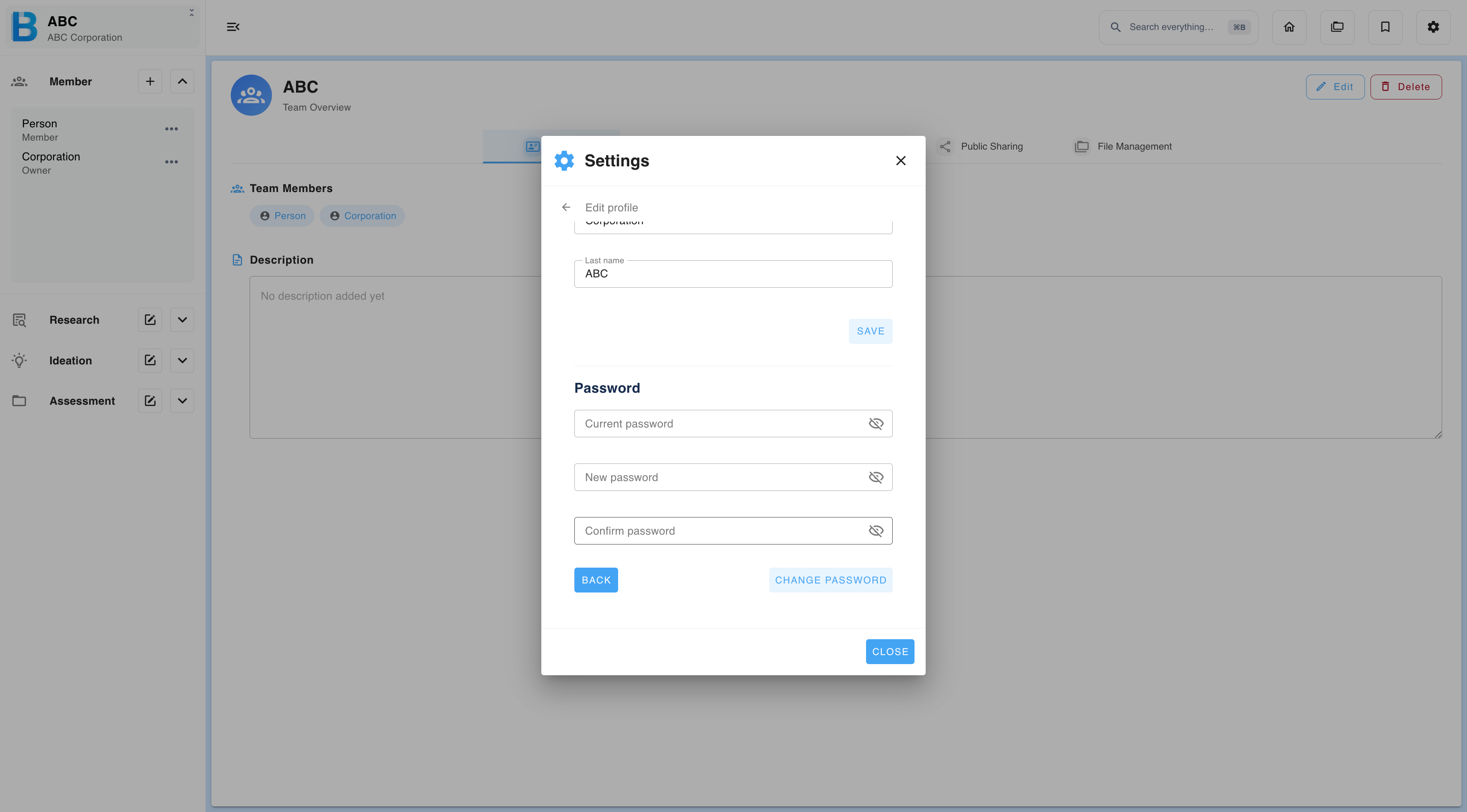
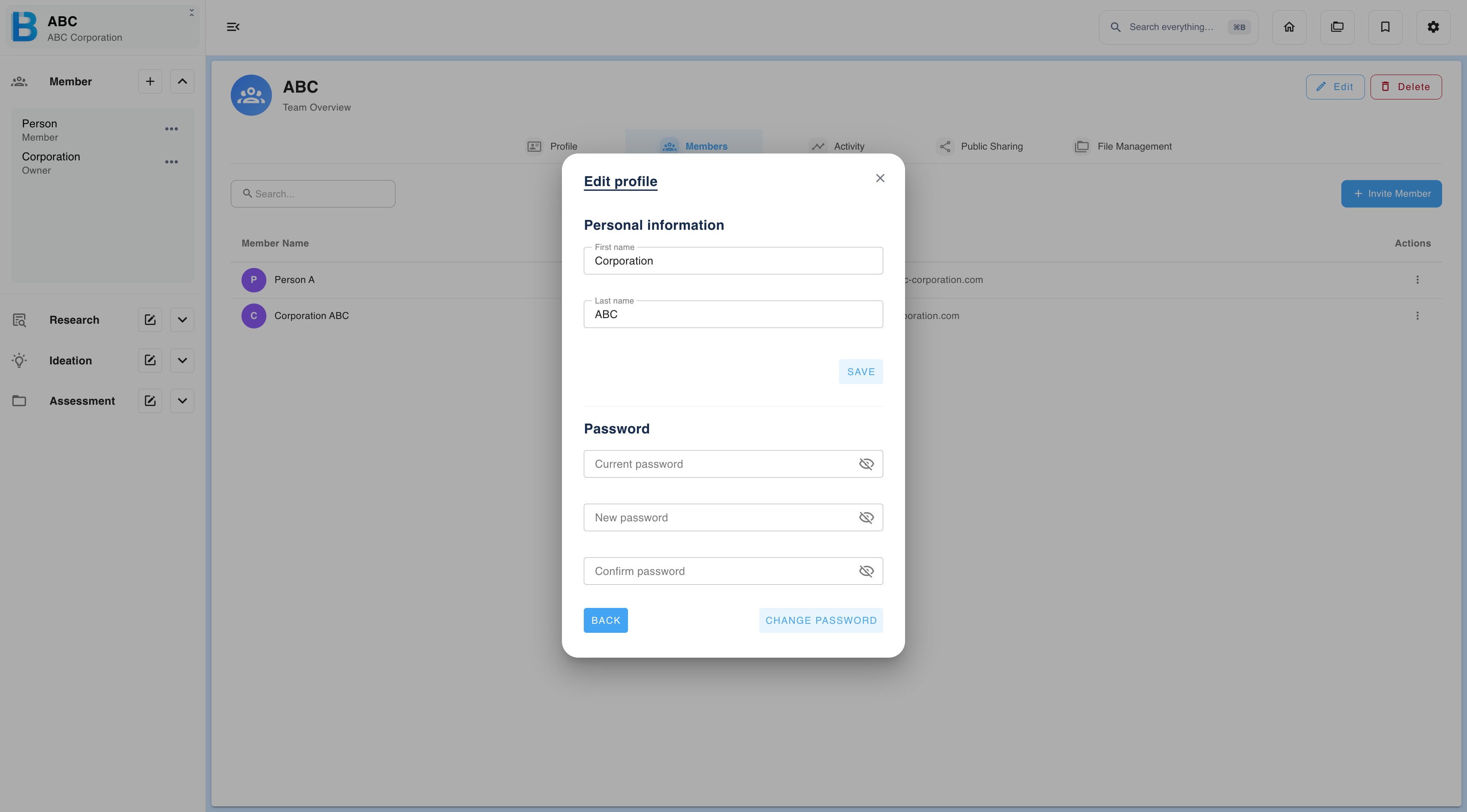
There are three routes to the same screen. Use whichever is closest to where you already are.
| Starting point | Path |
|---|---|
| The member list | Members → View profile → Edit |
| Settings | Settings icon → Account settings → Edit |
| Group administration | Group Administration → Members → View profile → Edit |
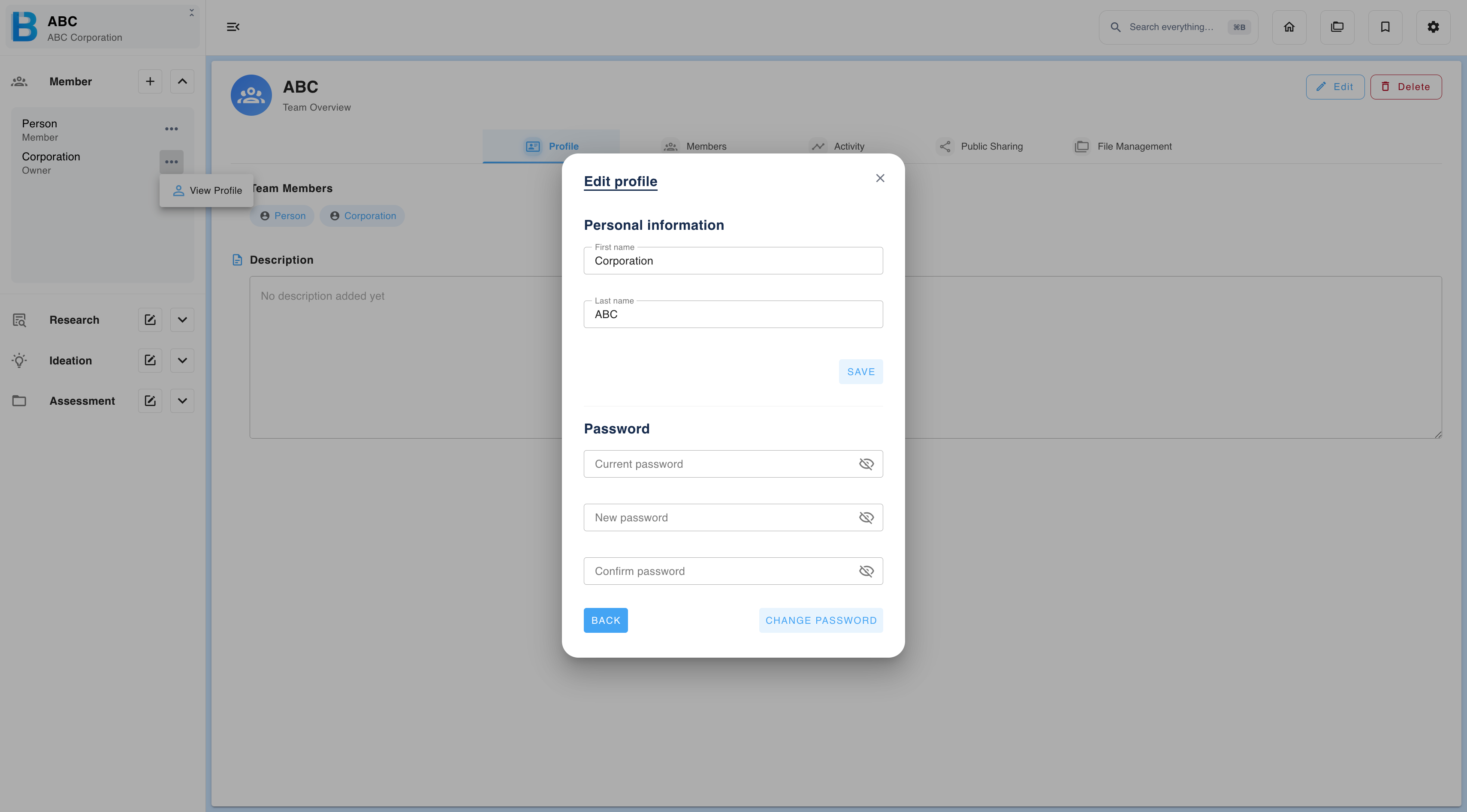
Step 2 — Fill in the three fields
| Field | What to enter |
|---|---|
| Current password | The password you use now. This confirms it is really you. |
| New password | The password you want from now on. Must meet the password requirements in Create an Account. |
| Confirm password | The new password again, exactly. This catches typos. |
Each field has an eye icon on the right. Select it to reveal what you have typed, which is useful for checking a long password before you submit.
Step 3 — Save
Select CHANGE PASSWORD to save, or BACK to leave without changing anything. Use your new password the next time you sign in.
If it will not save
| Message | What it means |
|---|---|
| Current password is invalid | Check for typos, or use the eye icon to reveal what you typed. If you truly do not remember it, sign out and use Forgot password instead. |
| Passwords do not match | New password and Confirm password differ. Reveal both and compare. |
| Password does not meet requirements | Check the rules in Create an Account — a missing uppercase letter or number is the usual cause. |