Creating your account
Register for BIIM: fill in the sign-up form, enter the one-time password and add your name.
Registration is a one-time step. Once your account exists you sign in with the same email address and password from then on.
If a colleague has already invited you to a group, you still register first. Their invitation is waiting for you once you sign in — see Invite Members.
The access checks in Getting Started apply here. If either the domain or the IP check fails, registration is blocked and you see an error instead of the sign-up form.
Step 1 — Fill in the registration form
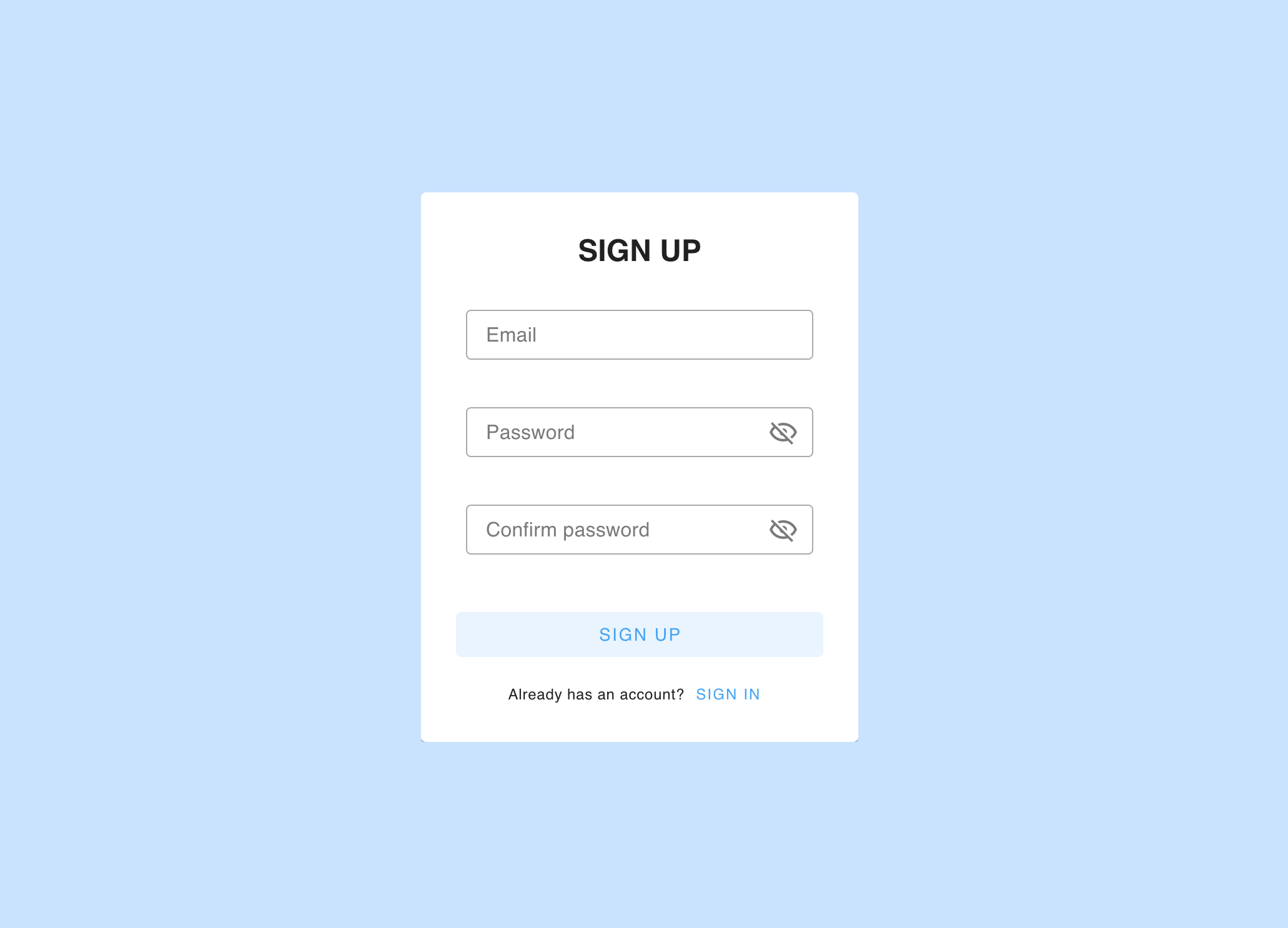
Go to https://biz.biim.cloud/auth/sign-up and enter:
- Your email address — the domain must be approved
- A password
- The same password again, to confirm
Then select Sign up.
Password requirements
| Rule | Detail |
|---|---|
| Length | 8 to 256 characters |
| Required characters | At least one lowercase letter, one uppercase letter and one number |
| Special characters | All special characters are accepted. They are not required, but including one makes the password stronger. |
Step 2 — Enter the one-time password
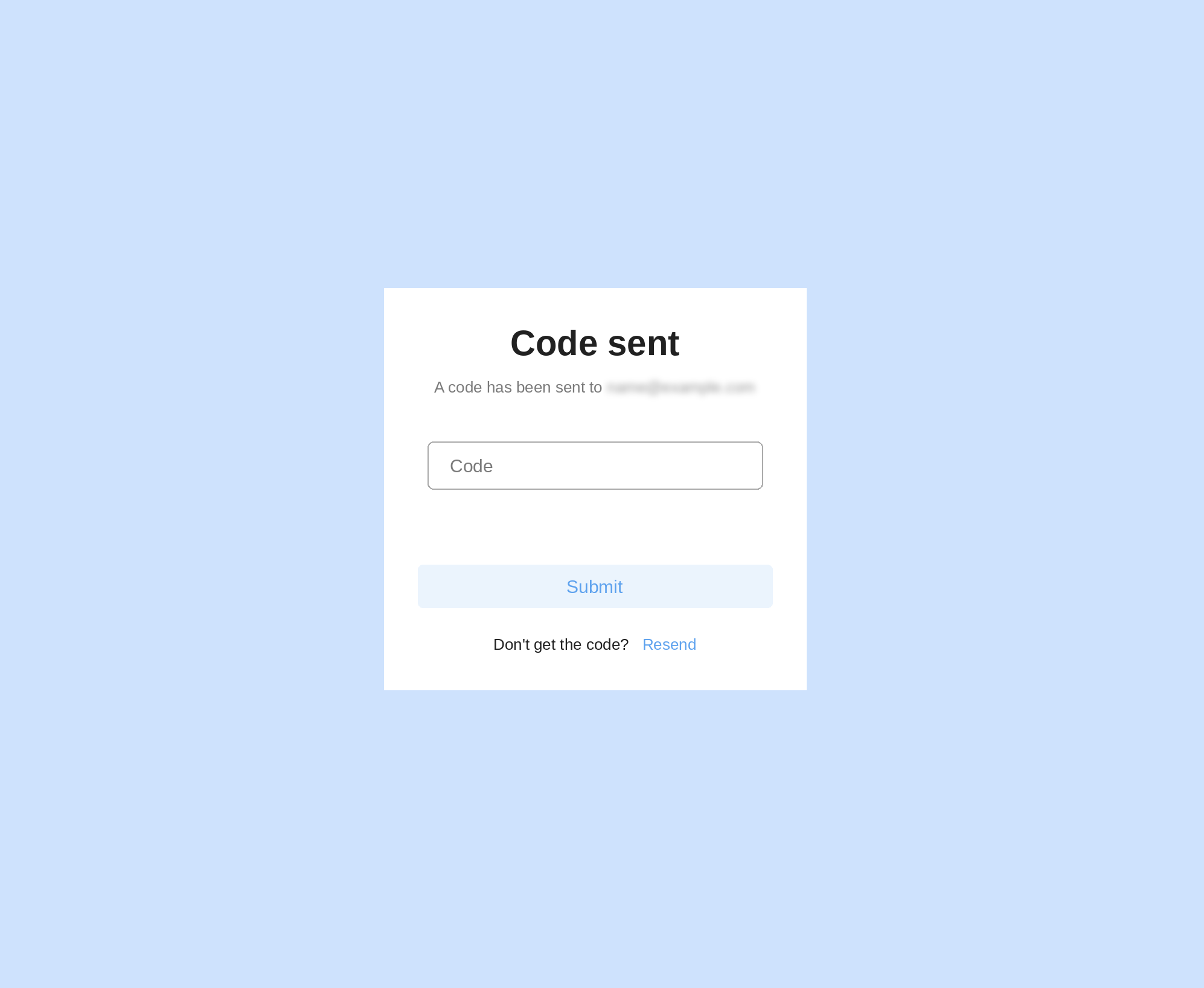
We email a one-time code to the address you registered with. Enter the code and select Submit.
| Detail | Value |
|---|---|
| Code length | 6 digits |
| Valid for | 5 minutes |
| Resending | A code can be resent once. Select Resend if the email has not arrived within a minute or two — check your spam folder first, so you do not use up the resend. |
One-time passwords are not only used at registration. Depending on how your organisation is configured, you may need a code every time you sign in. See Sign In.
Step 3 — Enter your name
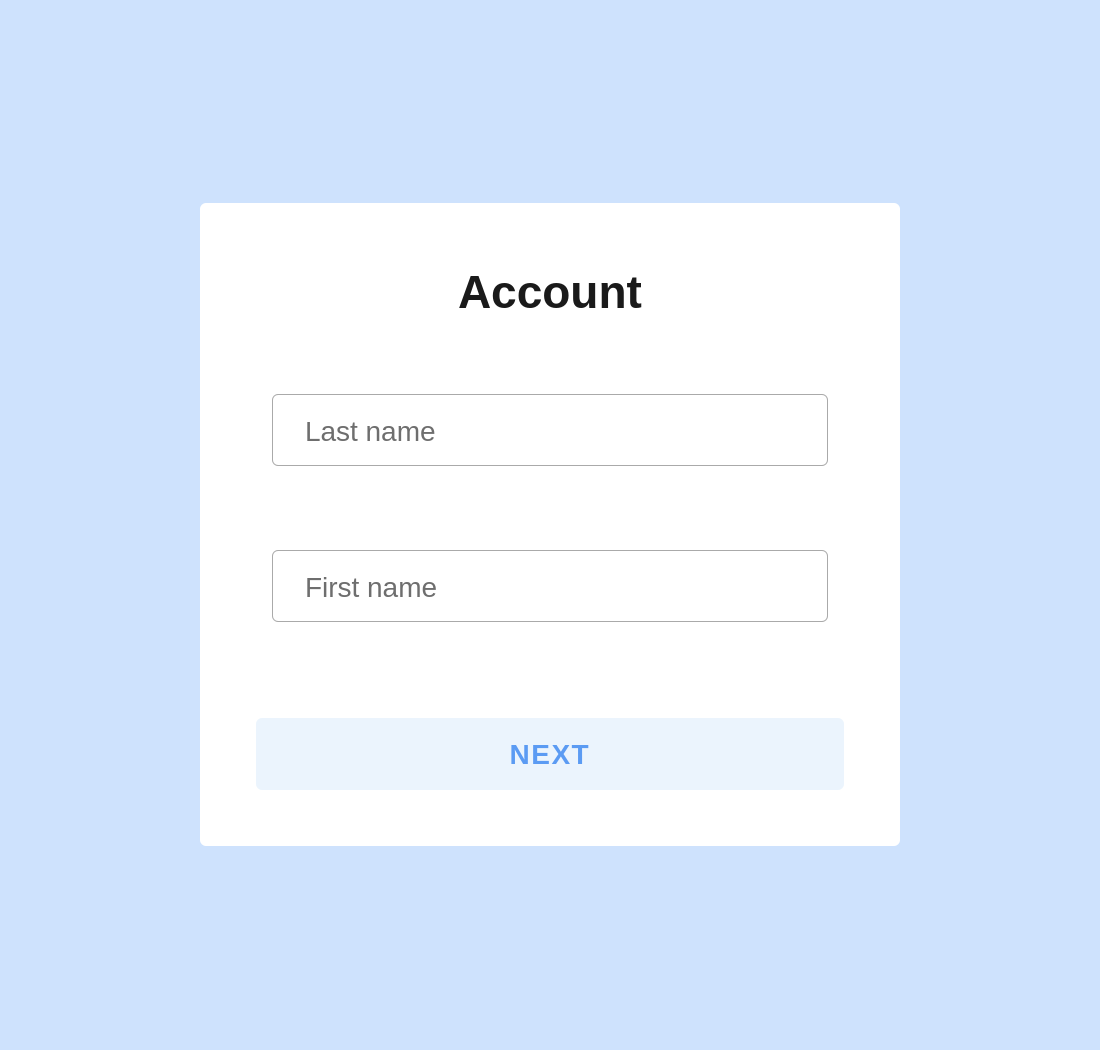
Enter your last name and first name, then select Continue. You are now signed in and your account is ready.
Next: create a group — see Create a Group. If a colleague has already invited you, accept their invitation instead and skip that step.