Creating an ideation
Three ways to create an ideation from scratch, in increasing order of how much you already know.
Creating from keywords
The quickest route in. Ideas are generated from your keywords plus your group's profile — the company information or team description — so the same keywords produce different ideas in different groups. See Create a Group.
| Step | What to do |
|---|---|
| 1 | Select Ideation → Start ideation. |
| 2 | Enter keywords. Press Enter after each to confirm; several are allowed, and free-form phrases work as well as single words. |
| 3 | Optionally choose a technique. |
| 4 | Select Create. |
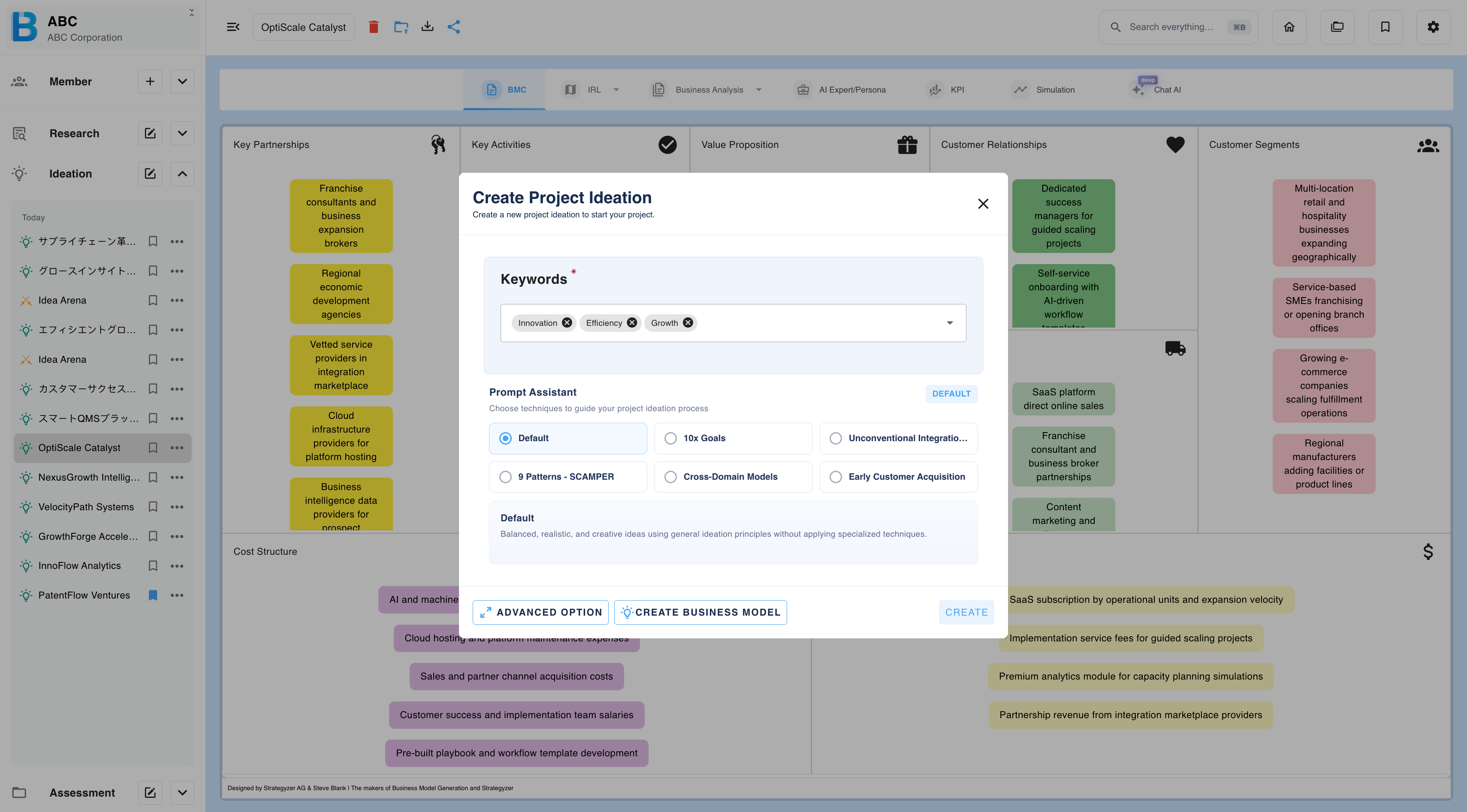
Techniques
A technique changes how the AI thinks, so the same keywords produce different ideas. It is optional — leaving it unset gives a balanced, realistic result.
Further techniques are available under Advanced options, below.
What comes back
Generation takes a few minutes, and you can work elsewhere in BIIM while it runs. Candidates are returned as summaries, each with its problem and solution.
Read them, then either build the business model for the one you want, or save several and compare them in Idea Arena.
Advanced options
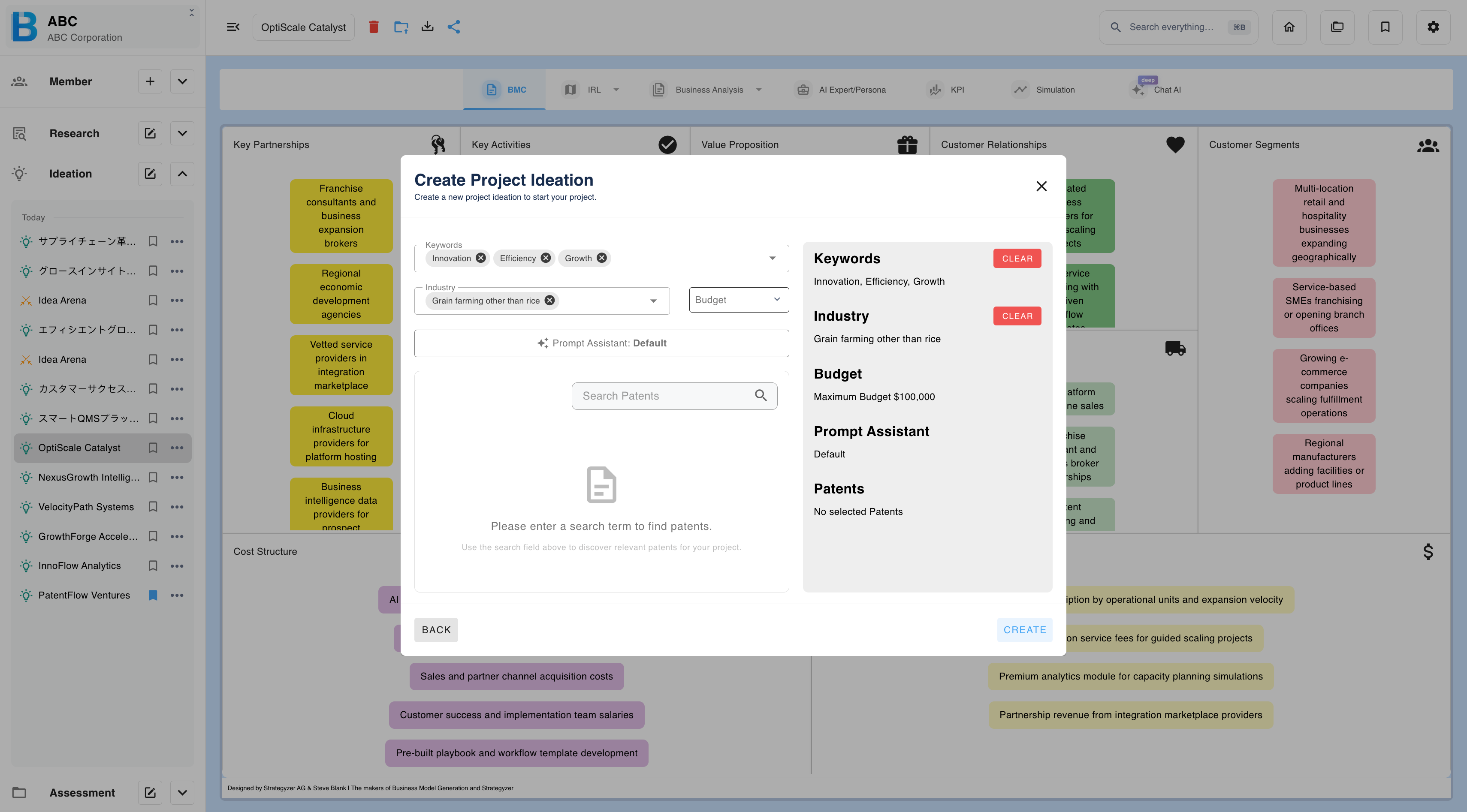
Advanced options constrain generation with specific patents and commercial limits. Select Advanced options on the ideation creation screen.
| Field | Notes |
|---|---|
| Keyword | Press Enter to confirm each; multiple allowed. |
| Industry | Press Enter to confirm each; multiple allowed. |
| Patent | Search and select — see below. |
| Budget | Select from the dropdown. |
| Technique | Optional. |
Your selections accumulate in a summary panel, and each block can be cleared independently.
Searching for patents
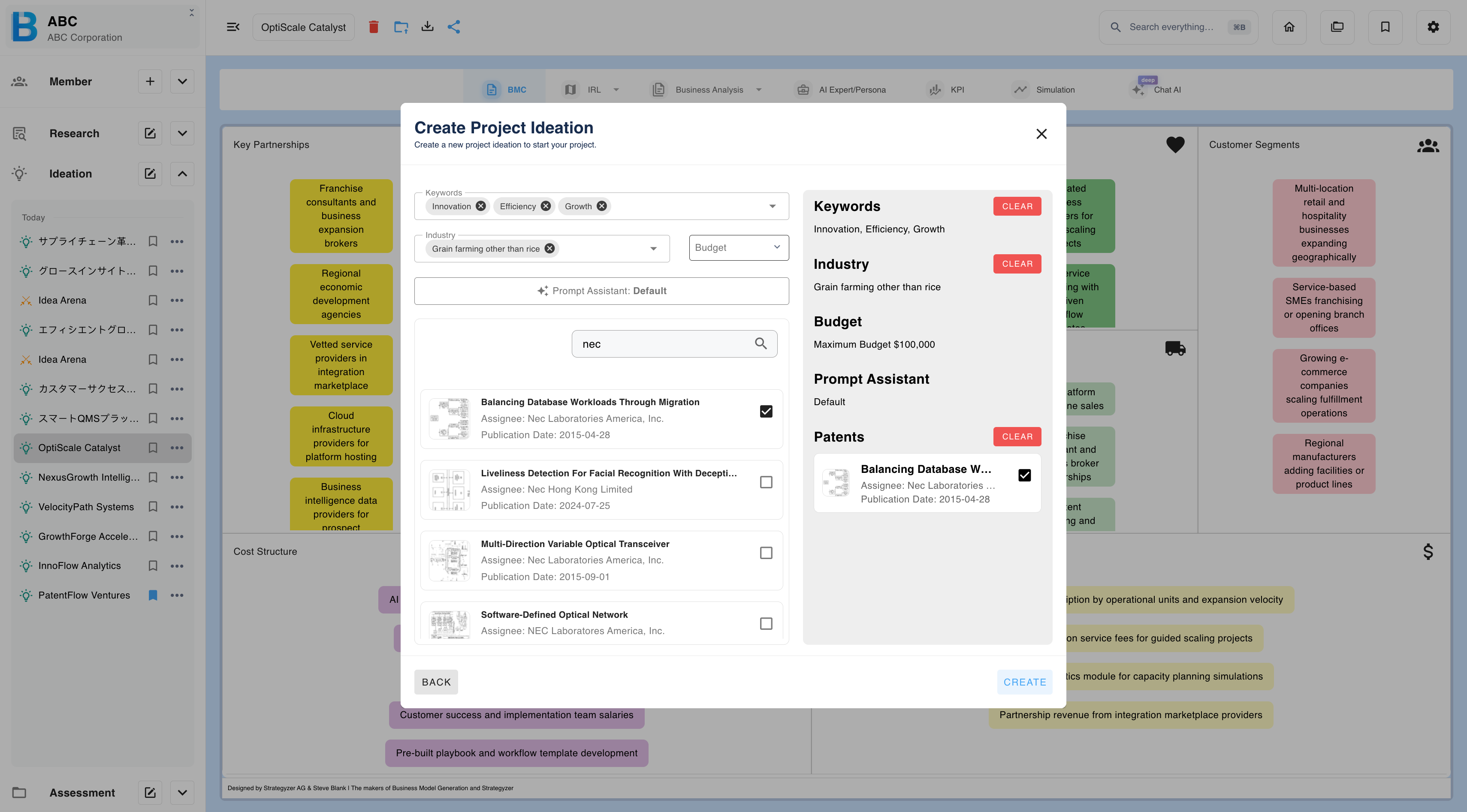
Search by patent number, company name or inventor. Results show the title, assignee and publication date; tick the ones you want.
Confirmed selections move to the summary panel and the search box clears, so you can run a different search and add more to the same ideation.
Business model builder
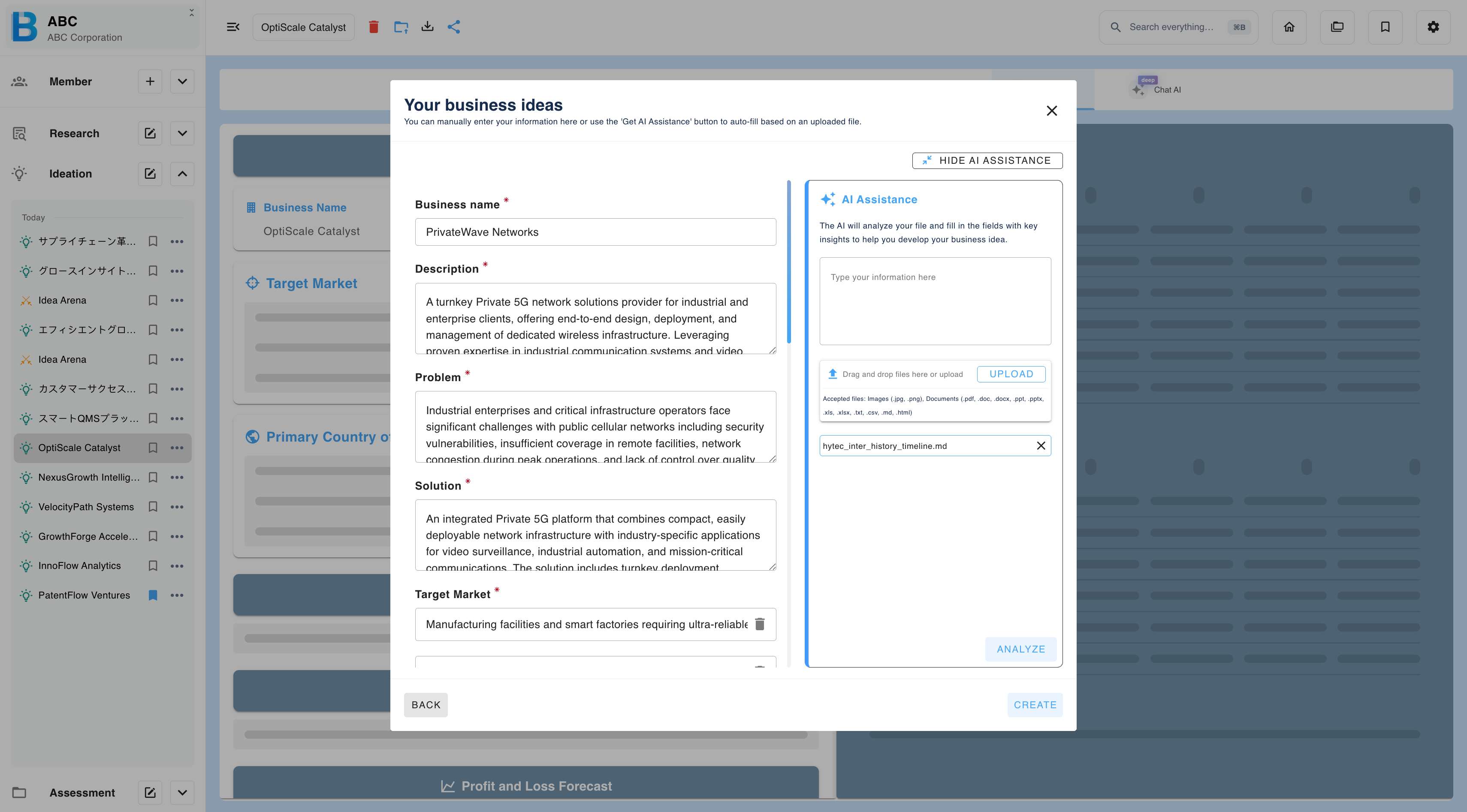
Use the business model builder when you already have a specific idea in mind, or a document that describes one. Select Create a business model on the ideation creation screen.
| Manual input | AI assistant | |
|---|---|---|
| Method | You fill in the fields yourself | The AI analyses your input and fills them |
| Best for | An idea you have already thought through | A rough concept, or an existing document |
Both routes produce the same structure, and every field stays editable afterwards.
Using the AI assistant
| Step | What to do |
|---|---|
| 1 | Describe the idea in the AI assistant pane, or upload a file. |
| 2 | Select Analyse. |
| 3 | The fields are populated: business name, description, problem, solution, customer segment, revenue model, value proposition and go-to-market strategy. |
| 4 | Edit anything that is wrong. |
| 5 | Select Create. |
Accepted files — images: .jpg .png. Documents: .pdf .doc .docx .ppt .pptx .xls .xlsx .txt .csv .md .html.