Managing ideations
Rename, edit with AI, duplicate, export, promote to assessment and delete ideations.
Select ··· next to an ideation.
| Action | Notes |
|---|---|
| Rename | Up to 70 characters. |
| Edit | Change the content and regenerate — see below. |
| Duplicate | Copies the whole ideation. |
| Move to folder | An item already in a folder is removed from that one — see Folders. |
| Download PowerPoint | Exports the ideation as a .pptx file. |
| Promote to assessment | See below. |
| Public share | Owner, or members the owner has permitted — see Public Sharing. |
| Bookmark | See Bookmarks. |
| Delete | Permanent. |
Editing with AI
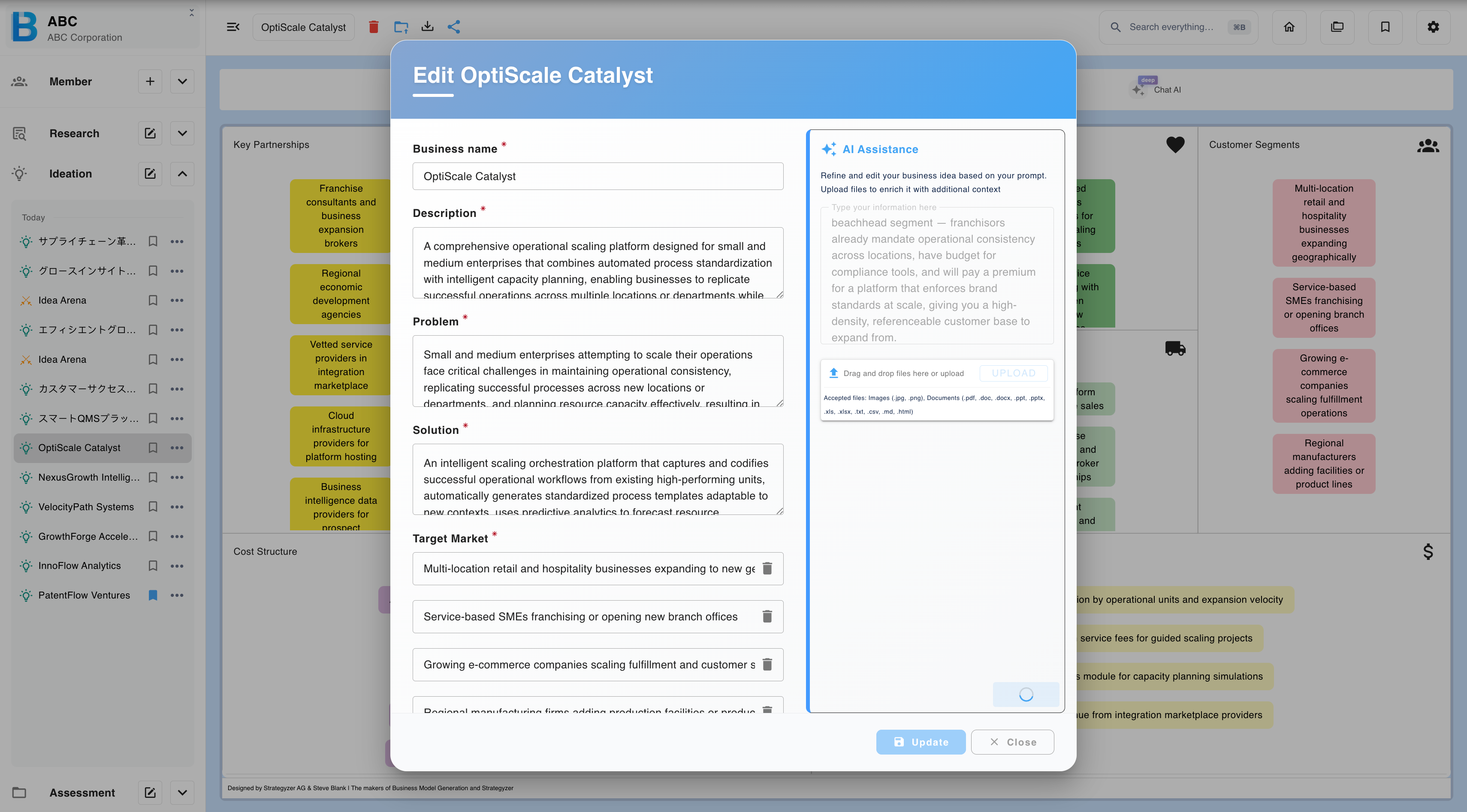
| Step | What to do |
|---|---|
| 1 | Select Edit. |
| 2 | Enter an instruction, upload a supporting file, or edit the fields directly. |
| 3 | Review the result and choose what to do with it. |
Instructions can be as broad as you like:
- "Rework the whole thing as a business focused on zzz as the target customer."
- "Make the revenue model primarily an outright sale to xx, and revise the cost items to match."
The four choices
| Option | Effect |
|---|---|
| Update and erase all data | Overwrites the ideation, discarding every generated view. |
| Update as new | Creates a separate ideation, leaving the original intact. |
| Keep current version | Applies nothing; the original stands. |
| Cancel | Abandons the edit. |
Update and erase all data discards every analysis view attached to the idea — similar services, strategic partner, pictograph, SWOT, PEST, diamond strategy, AI expert, AI persona, KPI and simulation. Choose Update as new to keep them, or Keep the current version if you are not sure.
Duplicate before any significant edit. It costs nothing and gives you a fixed reference point to compare the result against.
Deleting
Deleting an ideation permanently deletes every file used in it. The files cannot be recovered.
Promoting to assessment
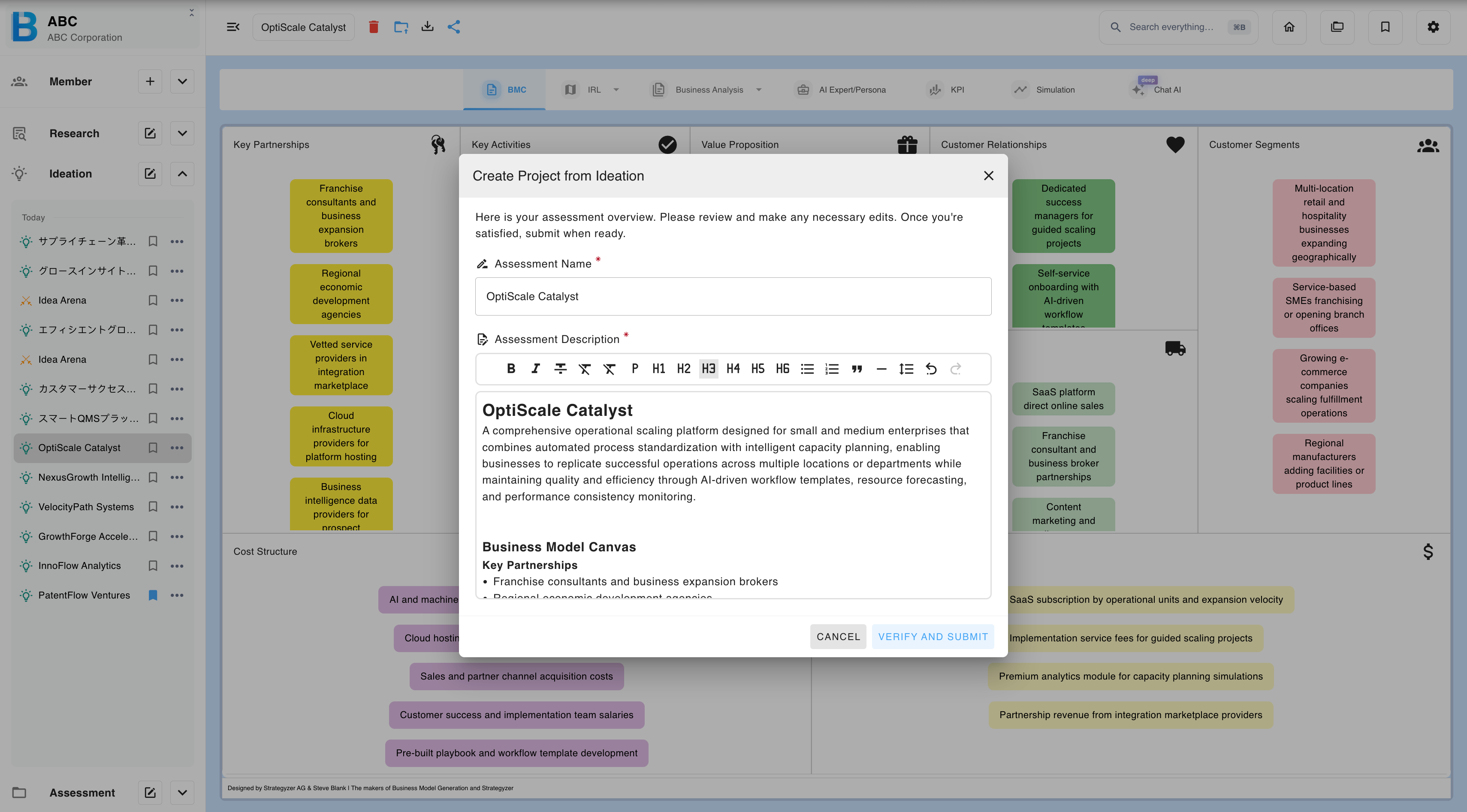
An ideation can be moved into assessment along with its supporting evidence.
| Step | What to do |
|---|---|
| 1 | Open the ideation. |
| 2 | Select Promote to assessment. |
| 3 | Review the pre-filled name and description. |
| 4 | Attach supporting files. |
| 5 | Confirm and send. |
The assessment runs and the result is displayed.
The files you attach here decide the quality of the result. Evidence that the idea is actually being executed — pitch decks, financials, test results, customer correspondence — produces a concrete readiness evaluation. The idea text alone produces a generic one.
Assessments promoted this way retain the ideation's context, so the assessment chat knows both the project and the idea it came from. See the Assessment chapter.